

TriggrAgentService Windows service in C:\Program Files\TriggrAgent, set to start automatically.
Install the desktop agent: the two variables, running the script, and the agent Online in Studio and Core (1:21).
Deploy through your RMM
In your RMM, set theTriggrClientId and TriggrClientSecret environment variables for the target machine to the client ID and secret you generated, then run the script with Windows PowerShell, as administrator. Rerun it to upgrade or reconfigure an agent: it replaces any installed service with the current version.
TriggrAgentDeploy.ps1
Install without an RMM
Save the script on the machine asTriggrAgentDeploy.ps1, open PowerShell as administrator in that folder, and run:
Exit codes
Your RMM can report the step that failed from the exit code.Check it’s connected
Until the agent first signs in, it shows Never Connected. When the script finishes, click Refresh under Agent Summary on the client’s page in Studio, or under Agent in the client’s panel in Core: it shows Online. Then run a workflow with an Execute PowerShell step for that client, and check its output under On-Prem > Executions in Studio.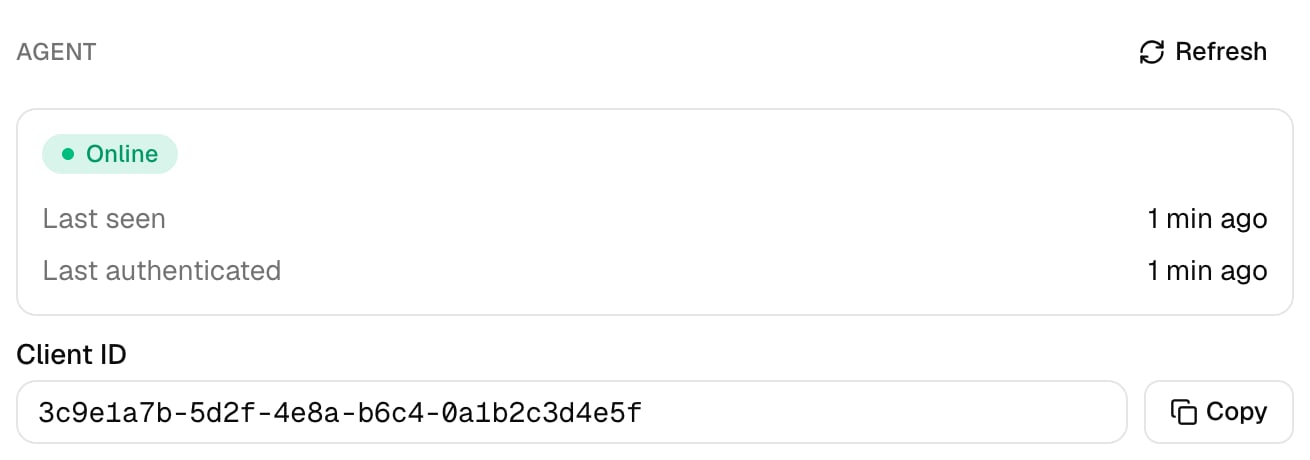
Troubleshooting
The agent never shows Online
The agent never shows Online
On the machine, run
& "C:\Program Files\TriggrAgent\TriggrAgentService.exe" -status, then read C:\ProgramData\TriggrAgent\logs\service.log (or run the same command with -view-logs). authentication failed with status 401: the client ID or secret is wrong or revoked, so rerun the script with the right values. failed to send request: the machine can’t reach api.triggr-app.com over HTTPS. Failed to load configuration: the machine was renamed after the install, so rerun the script.The script stops at “Configuring service credentials”
The script stops at “Configuring service credentials”
TriggrClientId and TriggrClientSecret aren’t set where the script runs: its Running: line ends -client-id "" -client-secret "". Stop the script, set both variables and run it again.Exit code 3: the download failed
Exit code 3: the download failed
The machine can’t reach
triggr-agent.s3.eu-west-2.amazonaws.com over HTTPS, or TLS 1.2 is disabled. Allow the download in your web filter and try again.Exit code 5: configuring the credentials failed
Exit code 5: configuring the credentials failed
The agent couldn’t save its settings in
C:\ProgramData\TriggrAgent; the script’s output gives the reason. Wrong values don’t fail this step; they show up later as an authentication error in the log.Scripts fail with “Access is denied” or can't find the ActiveDirectory module
Scripts fail with “Access is denied” or can't find the ActiveDirectory module
The service runs as Local System on that machine. Install it on a domain controller, or change the service’s Log On account in Services to one with the rights your scripts need, and install the modules they use. Rerunning the script sets it back to Local System.
A script was cut off
A script was cut off
The agent stops a script after 10 minutes. Split long jobs into several steps.