

Welcome to Triggr Core: the setup checklist and where everything is (1:29).
Sign in
Sign in at core.triggr-app.com with Continue with Microsoft or your email address. You need an invitation from your Triggr account manager or a teammate. With more than one organisation, pick yours under Choose your workspace; switch later from the bottom of the sidebar.Work through the checklist
On Home, click Set up on each step in order. Core ticks a step off when it’s done and its button changes to Review.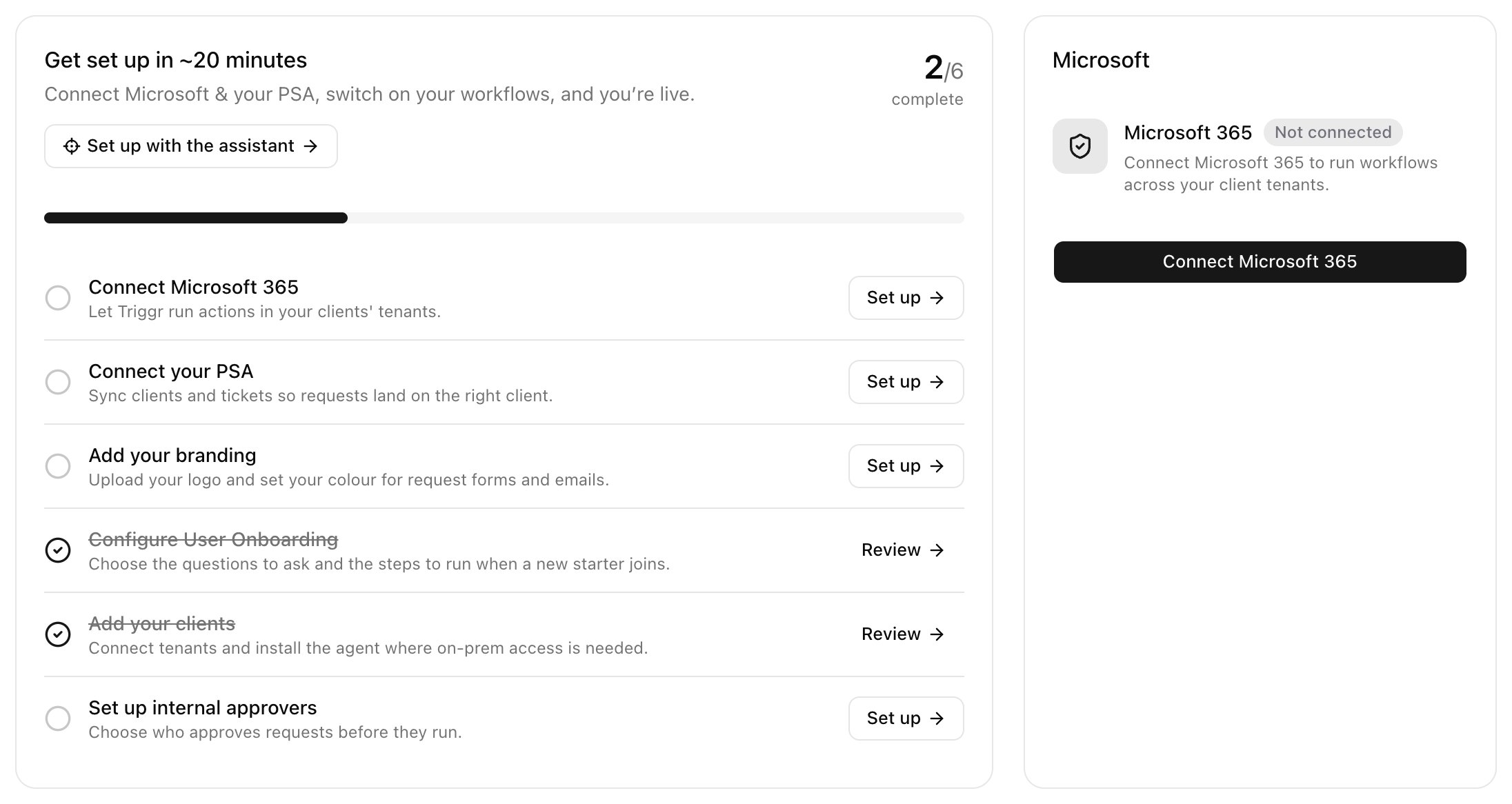
Then share your forms and invite your team.
Set up with the assistant
On Home, click Set up with the assistant. It asks a few questions and takes you through Connect Microsoft 365, Bring in your clients, Connect your clients (with GDAP), Set up internal approvers, Add your logo and colours, Connect your PSA, Discover how your clients onboard, Review the proposed setup, How your team and clients use Triggr and Share your onboarding form. Approvers, branding and the PSA are optional. It reads each client’s Microsoft 365 and proposes onboarding settings for every client. How your team and clients use Triggr sets who runs User Onboarding: your techs from Core, your clients from the form link, or both (see How Triggr Core works). Nothing changes until an admin approves it. Leave at any step and the card on Home picks up where you stopped; if you finished setup before a step was added, it shows as an optional to-do. Ask the assistant anything about Core at any time: it explains how Triggr works, tells you which clients User Onboarding would work for and what’s stopping the rest, tests a workflow for a client, diagnoses a failed run or a client’s Microsoft connection, and can retry them.Check it works for every client
Home shows how many clients User Onboarding would work for today, and what’s stopping the rest, grouped by cause. Click Ask the assistant to fix these to work through them, or test one client from the workflow page; see Test it for a client.Troubleshooting
“Triggr Core isn't enabled for …”
“Triggr Core isn't enabled for …”
You’re in a workspace that doesn’t have Core. Click Choose another workspace and pick your organisation; if it isn’t listed, ask your account manager.