

Follow a run: finding it by its reference, its steps and their output, and reading a failed step (1:14).
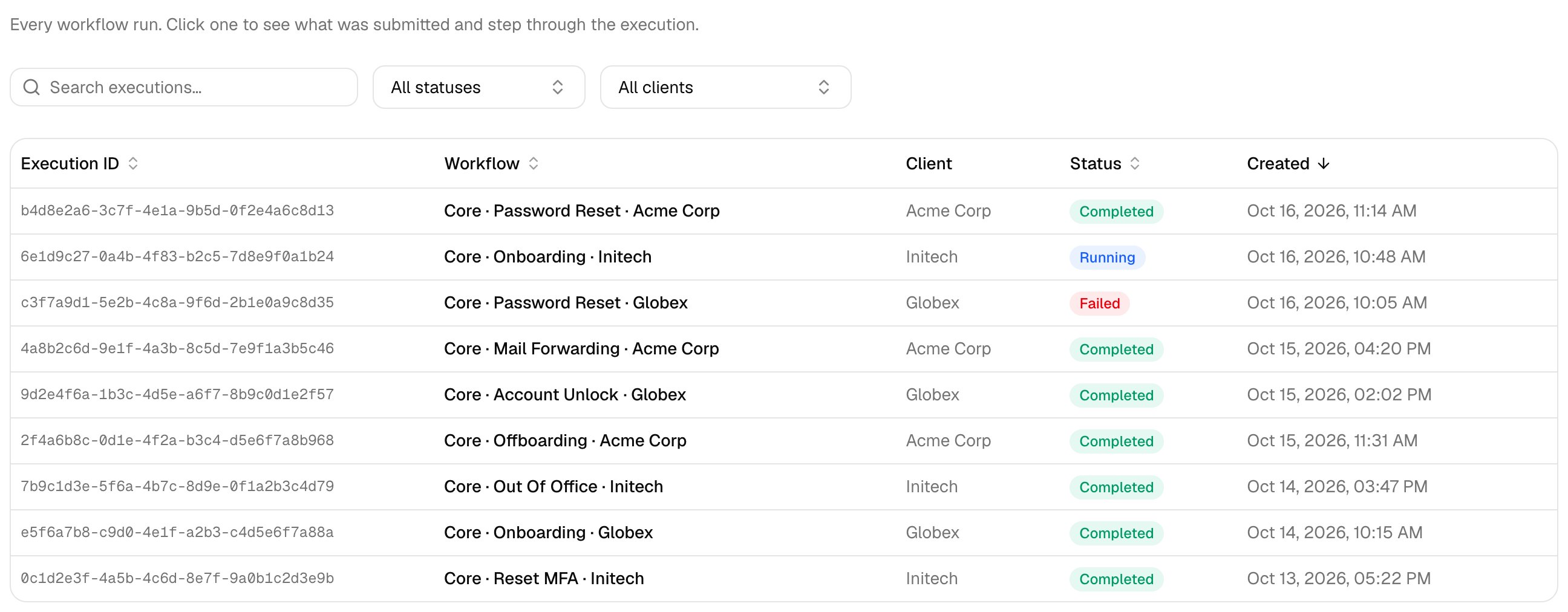
Open a run
1
Click a row
A failed run opens on Why it failed: the cause, who fixes it, the steps and what to do once it’s fixed. What happened lists what the run did, and Steps lists every step. A running run shows what it’s waiting for.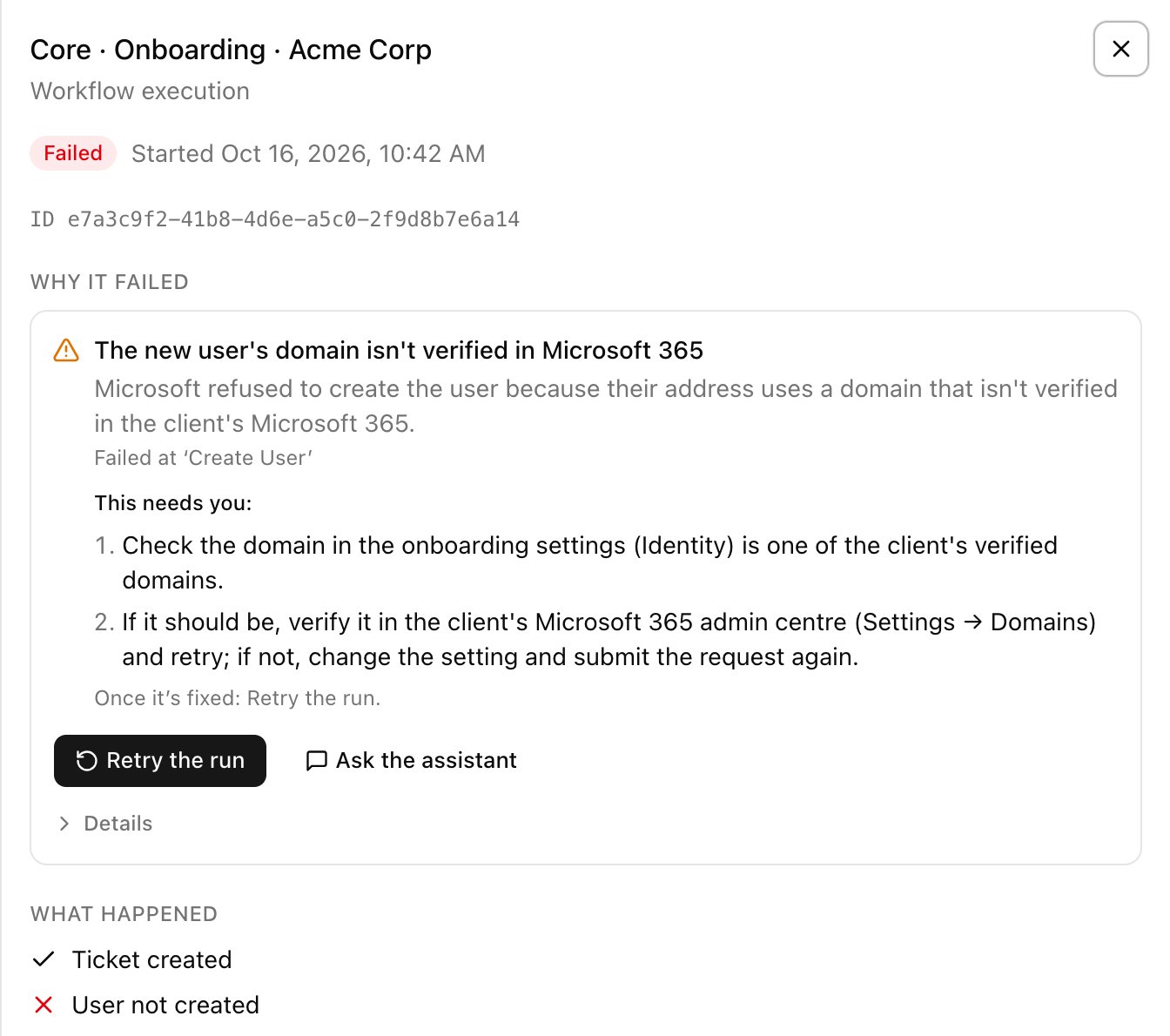
2
Click a step
Its output opens alongside. A failed step’s output holds the error on one line: scroll along it to read it all.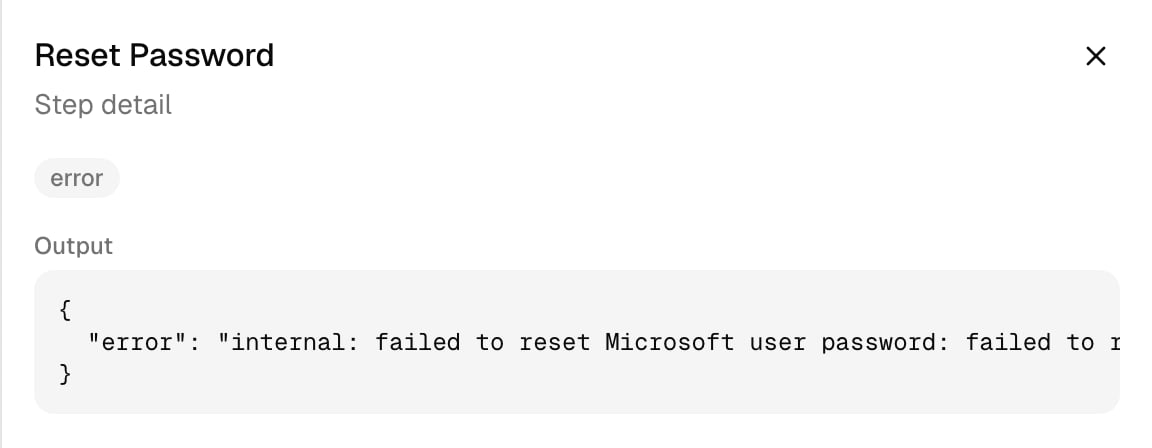
Fix a failed run
1
Fix the cause
Follow the steps under Why it failed, or click the button that opens the setting, such as Open the onboarding settings.
2
Retry the run
Click Retry the run, then Retry.
Create a missing ticket
A run whose PSA ticket wasn’t created still completes, with a warning that says why. Fix the cause, then click Create the ticket now and Create ticket. The confirm says to check your PSA first: the ticket may exist even though Triggr couldn’t confirm it. Only admins see the button.Runs that need attention
When a run fails or gets stuck, admins see N runs need attention on Home. Click it to list those runs on Executions. A run that fails or gets stuck while you’re in Core also raises a toast, or a card in the assistant if it’s open: click See why to open the run. Opening a run clears it from the count.Common reasons a run fails
An open run shows these steps for the causes MSPs see most. For Microsoft access problems, see Fix Microsoft connection problems.Your PSA needs a ticket type
Your PSA needs a ticket type
- Open the workflow’s Ticketing settings and pick a ticket type.
- Save, then create the ticket again.
No PSA is selected for tickets
No PSA is selected for tickets
- Open PSA setup and choose your PSA as the default.
- Create the ticket again.
This client isn't mapped to a PSA company
This client isn't mapped to a PSA company
- Open PSA setup → client mapping and map this client to its company.
- Create the ticket again.
Microsoft refused to assign the licence
Microsoft refused to assign the licence
- Check the client has a free seat of the licence (Microsoft 365 admin centre → Billing → Licences).
- Check the user has a usage location.
The new user's domain isn't verified in Microsoft 365
The new user's domain isn't verified in Microsoft 365
- Check the domain in the onboarding settings (Identity) is one of the client’s verified domains.
- If it should be, verify it in the client’s Microsoft 365 admin centre (Settings → Domains) and retry; if not, change the setting and submit the request again.
Troubleshooting
The run completed but no ticket was created
The run completed but no ticket was created
Open the run: its warning says why. Fix it, then create the ticket.
A step failed with “integration is not configured for tenant” or “no Microsoft Graph (GDAP) integration is configured for this client”
A step failed with “integration is not configured for tenant” or “no Microsoft Graph (GDAP) integration is configured for this client”
The client isn’t linked. Check its Microsoft tenant ID on Clients, click Link to GDAP, then run the workflow again. See No tenant ID.
A run has been Running for a long time
A run has been Running for a long time
Open it to see what it’s waiting for, such as the approver on Approvals. A run with nothing happening for over an hour shows Needs a look and what to do.