Introduction
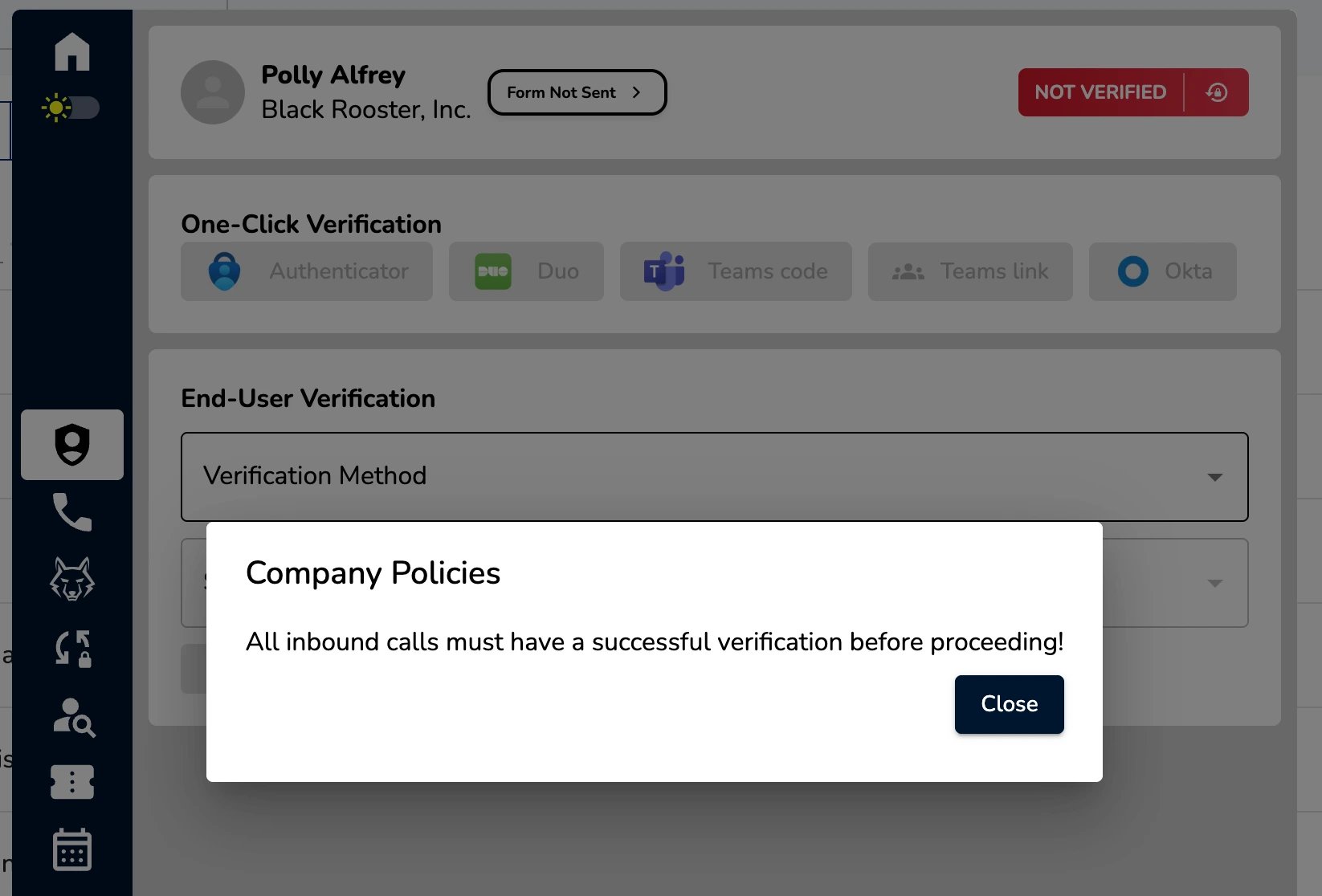
The Company Policies feature allows you to create a pop-up message, in our Autotask Insight/ConnectWise Pod/HaloPSA custom tab that can be customized per-Company. Those messages could be related to end-user verification for that Company, or they could be a more generalized message that you wish to show your technicians. This KB article will walk you through how to setup a default Company Policy, as well as how to apply company-specific Policies.Prerequisities
- You have Admin-level access to MSP Process
Configuring a Default Company Policy
- Login to MSP Process (https://app.mspprocess.com) as an Admin-level user
- Navigate to the Identity Management -> Verification -> Policies page
- The top section of the page allows you to configure a default Company Policy:
- Whether or not to have a default Company Policy
- What text should be displayed
- Whether the Company Policy should be made visible when your technicians open the MSP Process pod/insight within a ticket
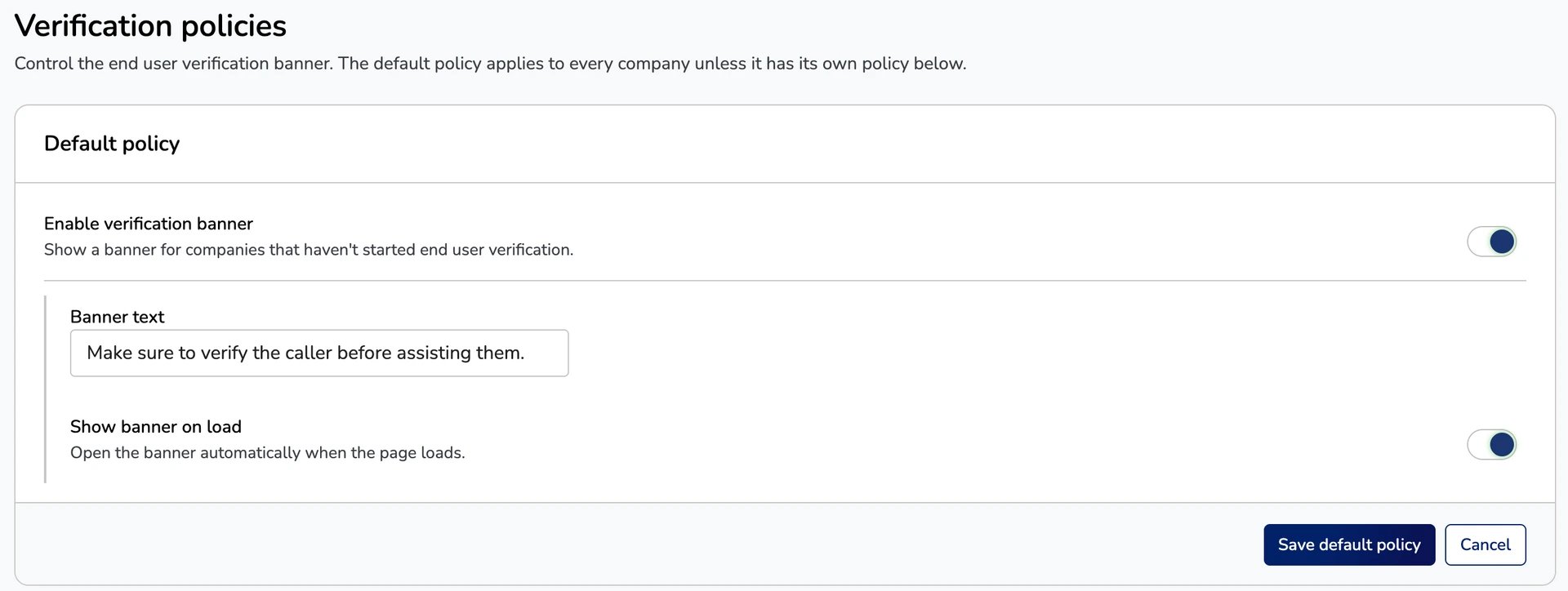
- Once you’ve configured things to meet your business needs, click the Save default policy button
Configuring Company-Specific Policies
The bottom section of the Policies page allows you to configure Company-specific Policies. When configured, a Company-specific Policy will be displayed instead of the default Company Policy. Creating a new Company-specific Policy is easy. Click the Add company button: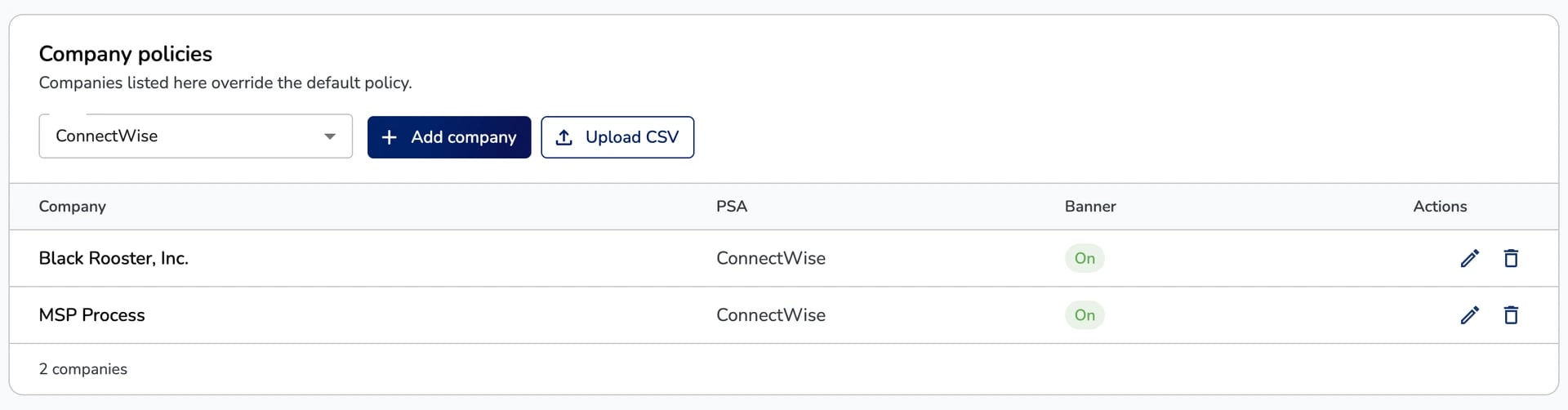
Uploading Company Policies via CSV
If you maintain a list of Companies - outside of MSP Process - who should or should not have a Policy applied, you can upload that CSV by clicking the Upload CSV button.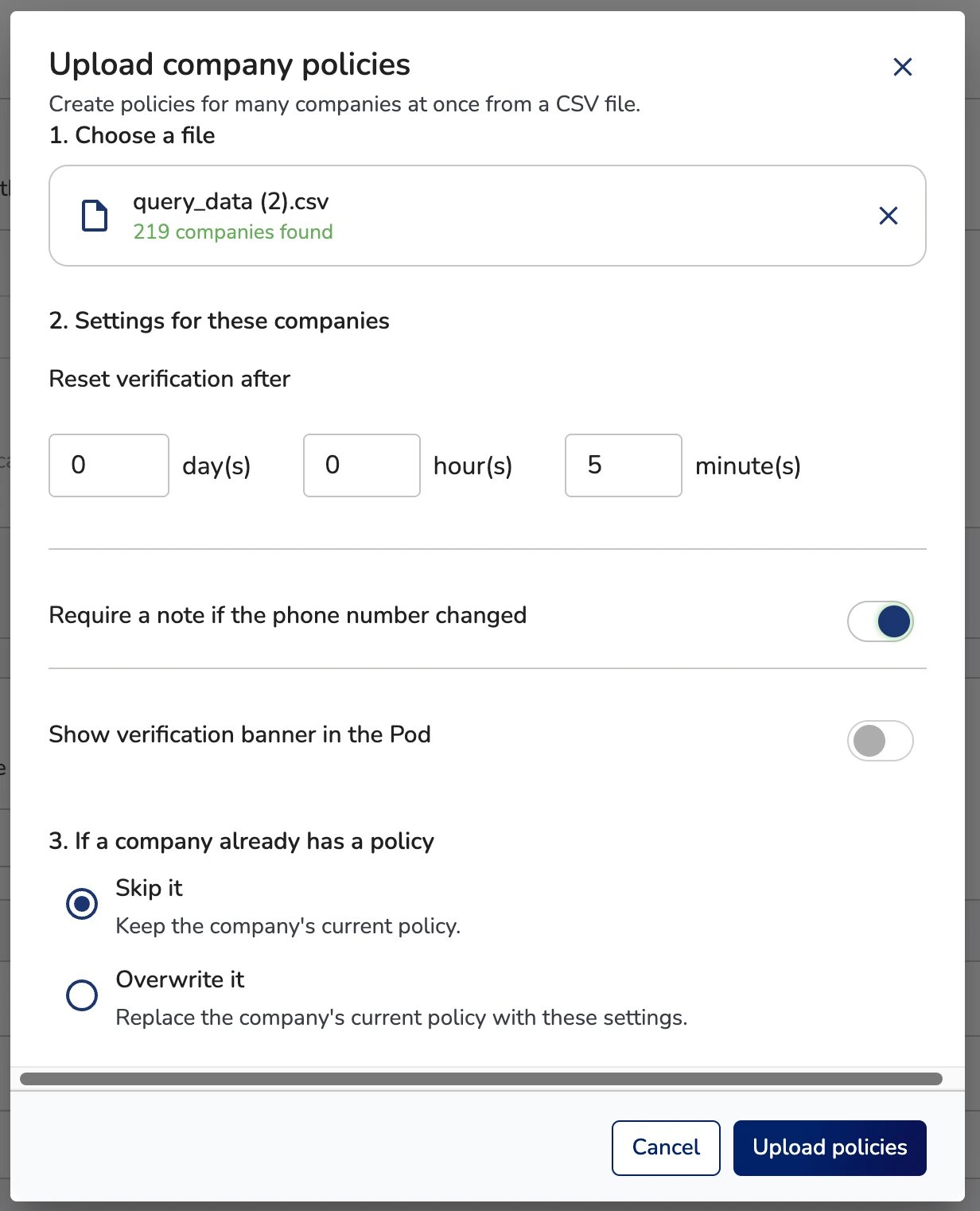
A Technician’s Perspective: What do they see?
When a technician is in your PSA, and they open a ticket, the MSP Process Pod/Insight will display the Policy text that you’ve defined for the specified company: