

Context:
MSP Process allows you to reset a user’s M365 password, right from within your PSA, or from the Contacts/Tickets pages in the MSP Process UI. Using the feature is exceedingly easy, but there are a few quick setup steps that need to be taken before the feature can be used.Linking MSP Process to your M365 Environments
You’ll need to deploy our Enterprise Application to your customer’s M365 environments before MSP Process can change an end-user’s password.Creating the App Registration
- Login to your Microsoft Azure portal (https://portal.azure.com)
- Navigate to App Registrations
- Add a new App Registration, and configure it as follows (note that the URL will change, depending on the ID of your M365 integration):
- Name: MSP Process: M365 Password Reset
- Supported Account Types: Accounts in this organizational directory only (Default Directory Only- Single Tenant)
- Redirect URI: This is an optional field; please leave it blank
- Click Register when you’re ready.
Assigning Permissions
- Within the App Registration that you just registered, navigate to the Manage -> API permissions blade
- Choose Microsoft Graph API
- Choose Application permissions
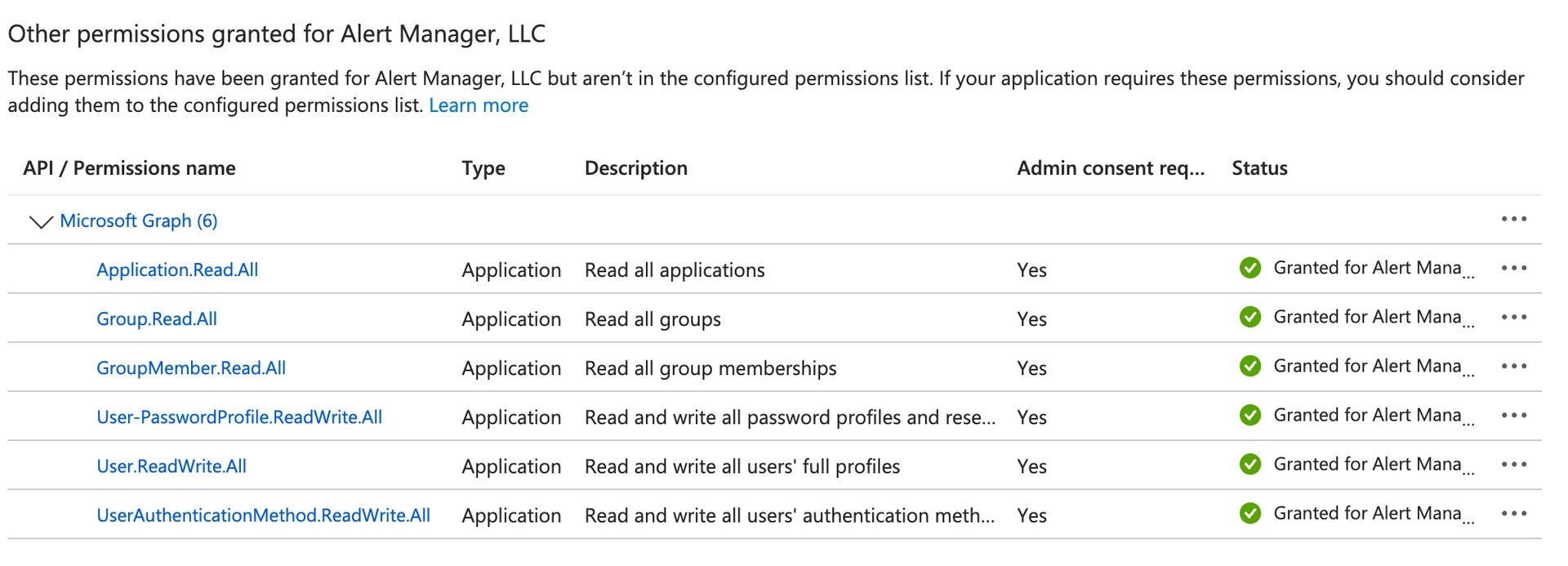
- Configure the App Registration to have the following permissions (all are Application-level permissions):
- Application.Read.All
- Group.Read.All
- GroupMember.Read.All
- User-PasswordProfile.ReadWrite.All
- User.ReadWrite.All
- UserAuthenticationMethod.ReadWrite.All
- Once you’ve added those permissions, it should look like this:
-
- Click the Grand admin consent for <your domain> button
Creating a Client Secret
- Within the App Registration, navigate to the Manage -> Certificates & Secrets blade
- Click the + New client secret button
- Specify a name for this client secret, and set the expiration date to be 730 days (24 months)
- Click the Add button
- Copy the Value of this new client secret - you’ll need it in the next section
Configuring MSP Process to Communicate with the App Registration
- Login to MSP Process (https://app.mspprocess.com) as an Admin-level user
- Navigate to the Settings -> Integrations -> Security Integrations page
- Click on the Add New Integration button
- Click on the M365 Identity Management button
- Fill in the required fields:
- Click the Submit button to finish setting everything up