Overview
The MSP Process platform can reset M365 users’ passwords, reset their MFA methods, and reset their accounts, all from within the MSP Process pod/Insight. To do this, an Enterprise Application must be deployed into each M365 tenant. The fastest and most repeatable way to deploy it is to use the Admin Relationships you’ve already set up through the Microsoft Partner Center. This article walks you through the required steps. If an end-user can’t verify their own identity before a reset, for example because they’ve lost the phone they use for Microsoft Authenticator, you can verify them through their manager or a designated point of contact using the manager approval method, covered below.Where You Can Perform Identity Management Actions
You can reset an end-user’s password, MFA, or account from any of these locations:- The Contacts and PSA Tickets pages of https://app.mspprocess.com
- The ConnectWise and HaloPSA pod
- The Autotask and FreshService Insight
- The browser extension used by SuperOps/Syncro and Kaseya BMS partners
This article provides instructions for setting up and deploying M365 Identity Management. If M365 Identity Management has already been successfully deployed and you’re looking for guidance on how to use its available features, please see Self-Service Password Reset (SSPR), MFA Reset, and Unlocking User Accounts.
Prerequisites
- You must have Admin Relationships set up in the Microsoft Partner Center with each M365 tenant you want to link to MSP Process.
- Those Admin Relationships must include the Application Administrator, User Administrator, and Authentication Administrator Entra roles.
- Each of those roles must be assigned to a Security Group.
- Ideally, use a dedicated group for each role, such as “GDAP - Application Administrator”, “GDAP - User Administrator”, and “GDAP - Authentication Administrator”.
- The Microsoft user account you’ll use during setup must be a member of all three Security Groups in M365.
Linking MSP Process with Microsoft 365
- Log in to the MSP Process UI.
- Navigate to Settings → Integrations → Security Integrations.
- Click the Add new integration button.
- Click the Identity Management option.
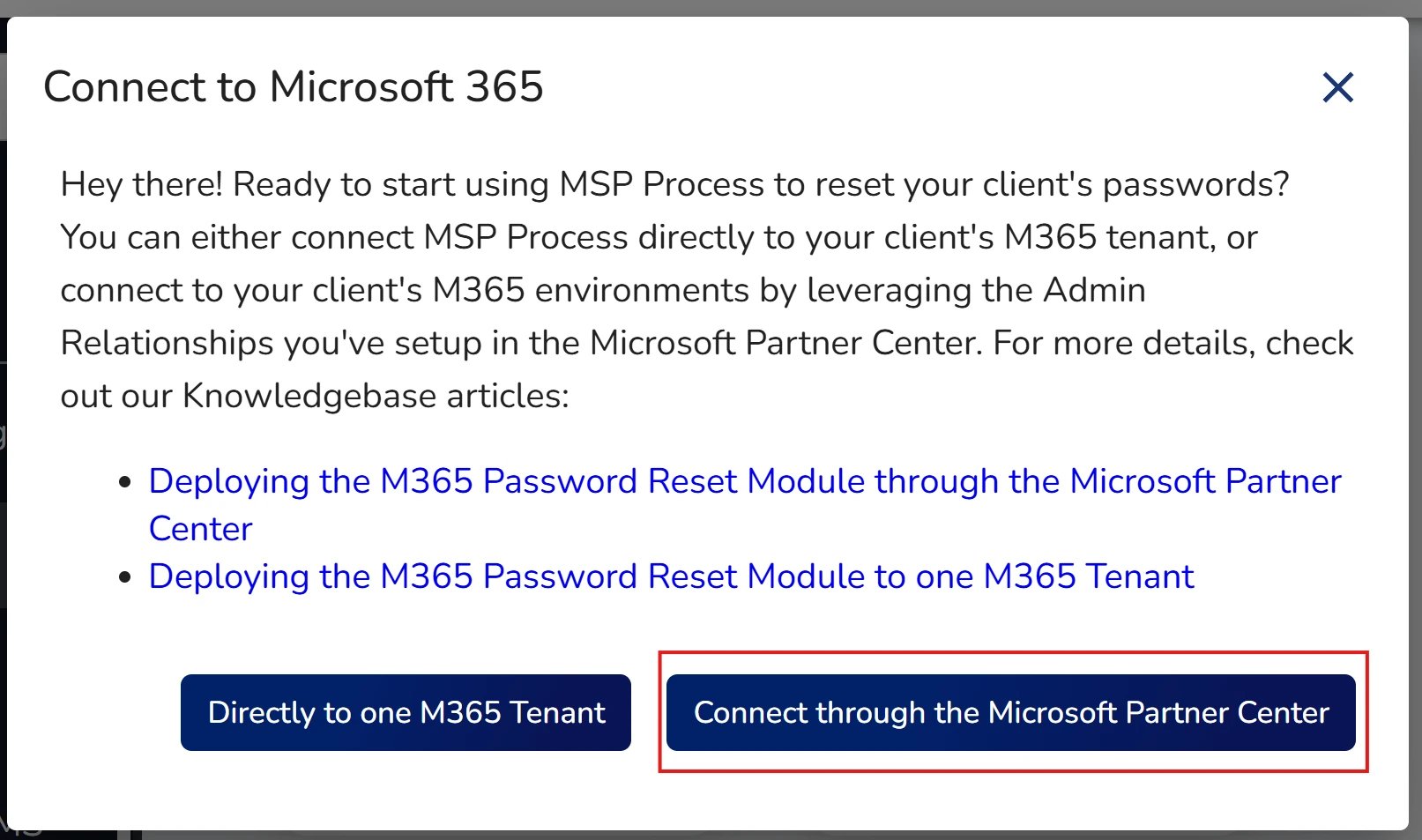
- Click the Connect through the Microsoft Partner Center button.
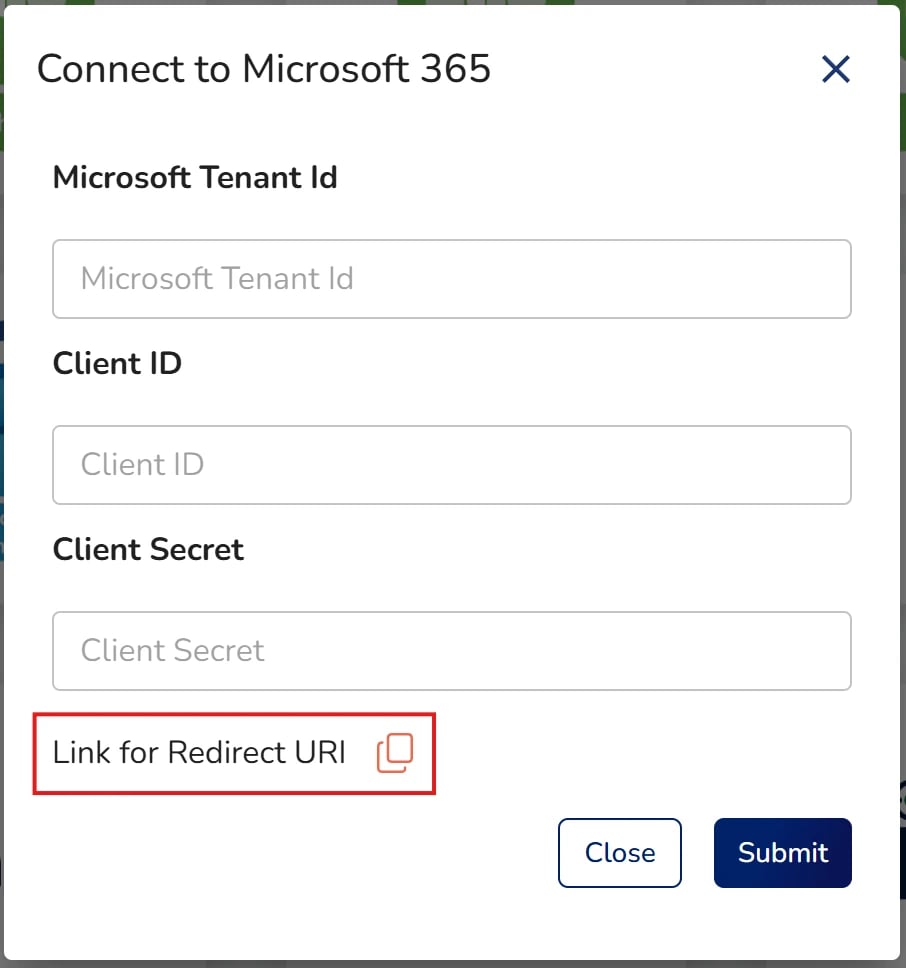
- In the pop-up window that appears, click the Link for Redirect URI button.
- Keep the MSP Process window open. In a separate browser tab, log in to https://portal.azure.com.
Configuring the Integration for a M365 Cloud Solution Provider (CSP) Environment
NOTE: The Admin Relationships you’ve established with your clients’ M365 tenants must have the Application Administrator, User Administrator, and Authentication Administrator roles assigned. If Authentication Administrator is missing, password and account resets will still work, but MFA resets will fail.- Log in to your Microsoft Azure portal (https://portal.azure.com).
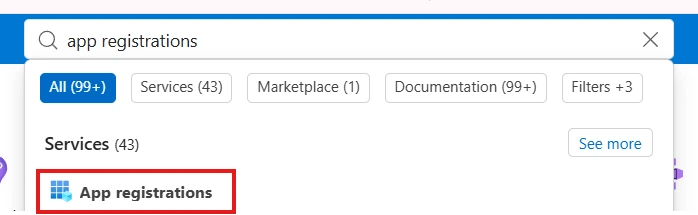
- Navigate to App Registrations.
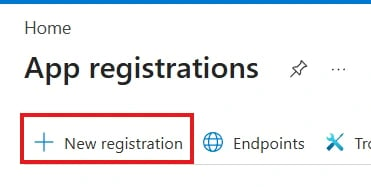
- Add a new App Registration.
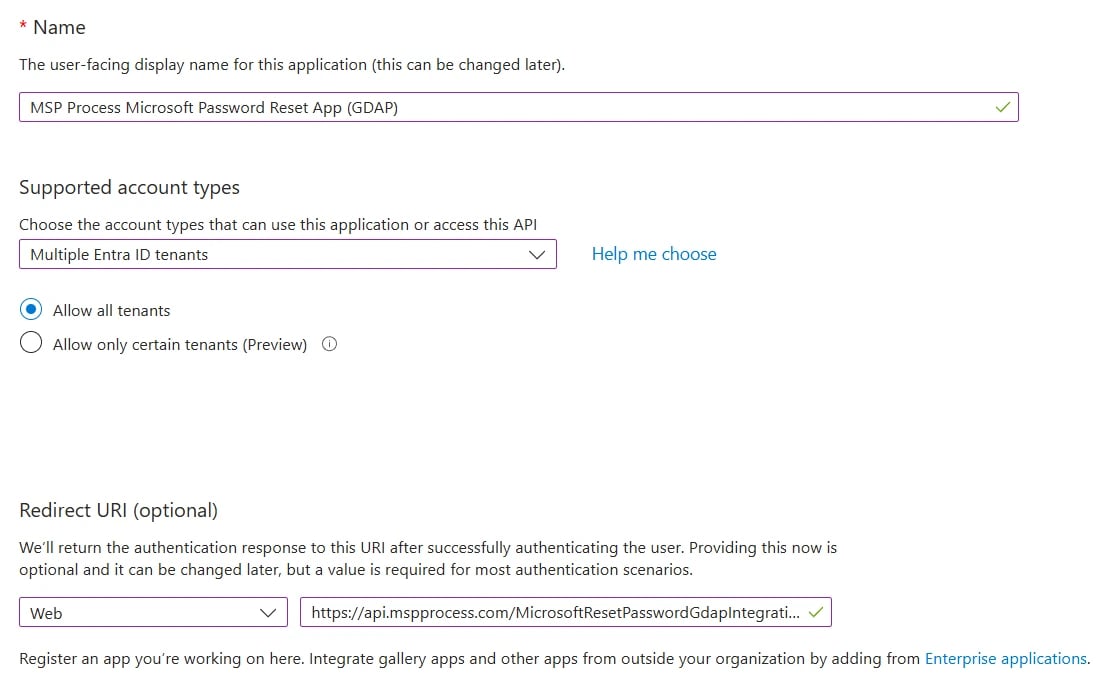
- Configure it as follows. The URI will vary depending on the ID of your M365 integration.
- Name: MSP Process Identity Management App (GDAP)
- Supported Account Types: Multiple Entra ID tenants; choose the Allow all tenants radio button
- Redirect URI: Web; URI: the URI you just copied from MSP Process
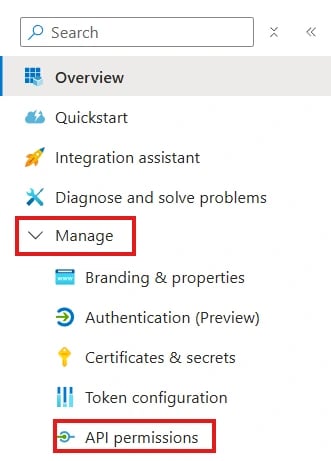
- Within the App Registration you just created, go to Manage → API Permissions
-
- Assign the app the following permissions.
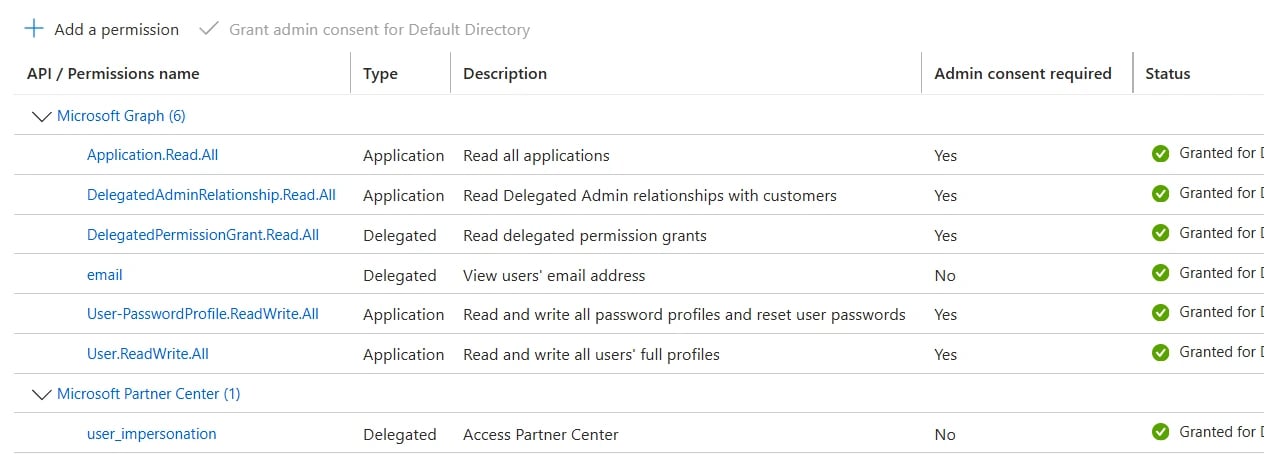
- NOTE: For the Partner Center’s user_impersonation permission, there are two identically named permissions. To save yourself a headache, search for the following application ID to bring up the correct one:
-
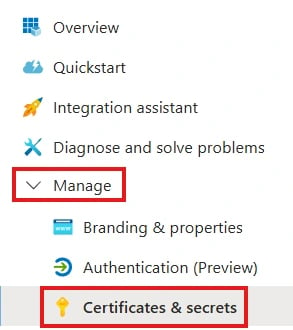
**fa3d9a0c-3fb0-42cc-9193-47c7ecd2edbd** - Within the App Registration, navigate to Manage → Certificates & Secrets.
-
- Give your secret a name and we recommend setting the “Expires” to the longest length.
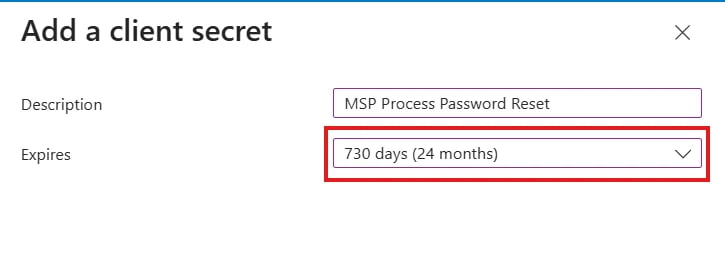
- Add a new Client Secret.
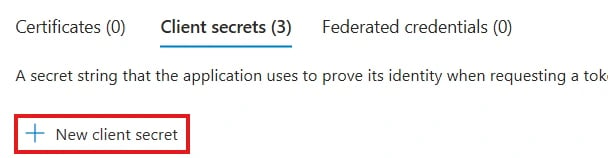
- Copy the Client Secret Value, not the ID, because you’ll need it in a moment.

- In MSP Process, return to the Identity Management pop-up window you opened earlier and enter the required information:
- The Tenant ID of your M365 CSP tenant
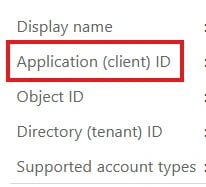
- The Application ID of the app you just registered, found on the Overview page of the App Registration
- The Client Secret from step 10
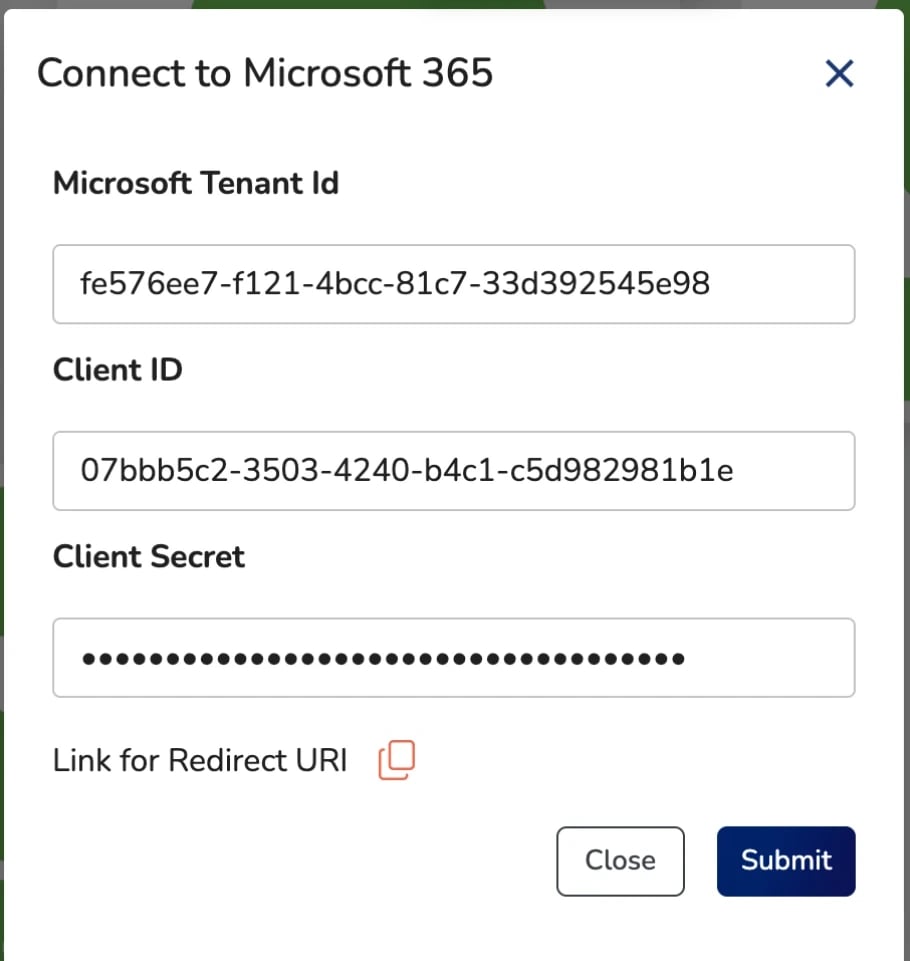
- Click Submit.
- When prompted, enter your Microsoft credentials.
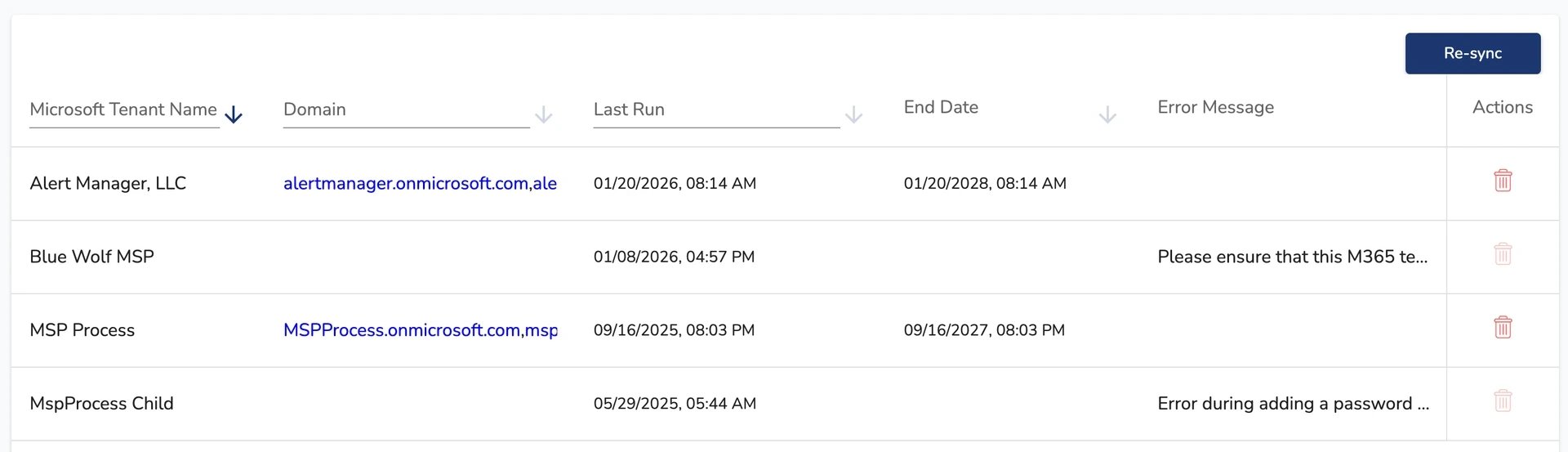
- Once you’re returned to the MSP Process UI, wait 1–2 minutes, then click the Identity Management card. You’ll see your Partner Center-linked tenants.