

Overview
Self-Service Password Reset (SSPR) is MSP Process’s identity-management module for the three most common account actions your help desk handles: Reset Password, Unlock User Account, and Reset MFA. All three sit behind End User Verification, meaning a technician can only run them once the end-user has been verified on the ticket, so the action is always tied to a confirmed identity and logged for audit. Reset MFA clears a user’s registered authentication methods so they can re-enroll from a new device. It’s built for the everyday cases: a user lost or replaced their phone, or a new hire’s enrollment isn’t working and you need a clean slate. It removes the registered methods rather than switching between them. Because these actions live behind verification, we recommend enabling verification and SSPR together as it keeps the experience consistent and avoids re-training.If you have not set up M365 Identity Management Security Integration yet, please review Deploying the M365 Identity Management Module through the Microsoft Partner Center.
Set Up for Cloud (Microsoft 365)
The cloud side uses a dedicated Identity Management enterprise app, set up the same way as the Microsoft Authenticator integration.- Go to Settings → Integrations → Security Integrations.
- Select Add New Integration → Identity Management M365.
- Push the app to your target tenants — either tenant-by-tenant, or across all tenants over GDAP via Partner Center.
Set Up — On-Premises Active Directory
For accounts that live in on-prem AD, deploy the agent:- Go to Identity Management → Agents and download the agent.
- Install it on the Domain Controller. No additional configuration is required.
Technician Workflow
Verifying the End-User
However you access these capabilities, you must always verify the end-user’s identity first. The Reset Password, Reset MFA, and Reset Account options will not be available until the end-user has been verified.
Verifying an End-User Through Manager Approval
Use this method when the end-user can’t verify their own identity. Common situations include a lost or replaced phone, an MFA reset where their authenticator is unavailable, or no verification methods on file. Instead of verifying the end-user directly, you send the verification request to their manager or point of contact, who approves or denies it.- Open the end-user’s ticket or contact in the full pod.
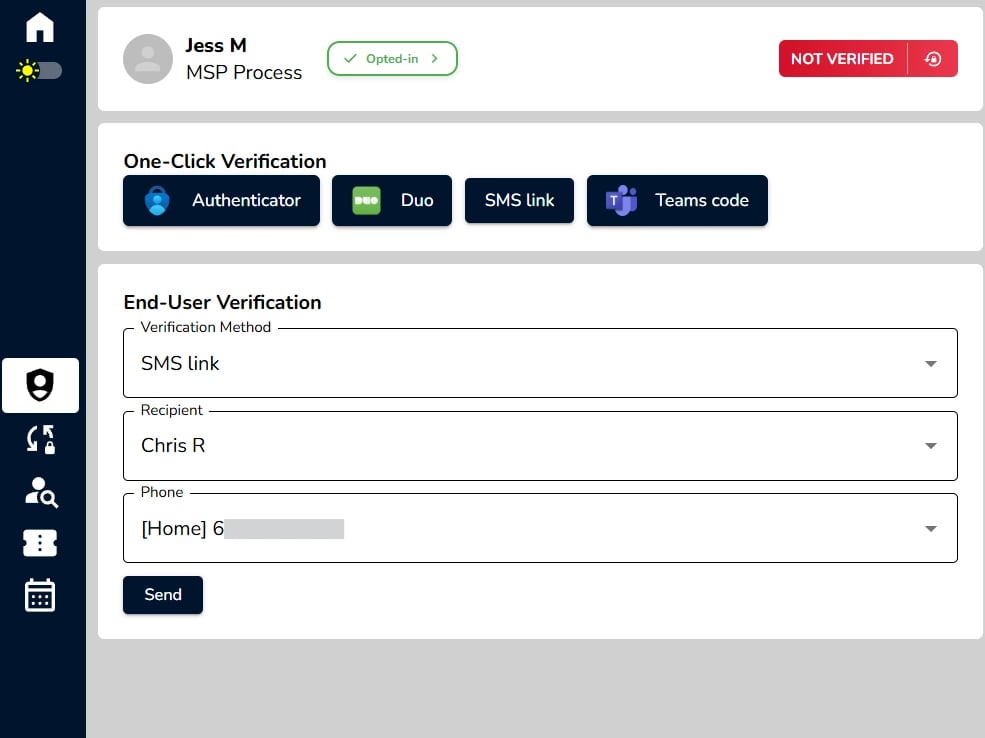
- In the verification selection dropdown and select SMS Link.
- Change the recipient from the end-user to their manager or designated point of contact.
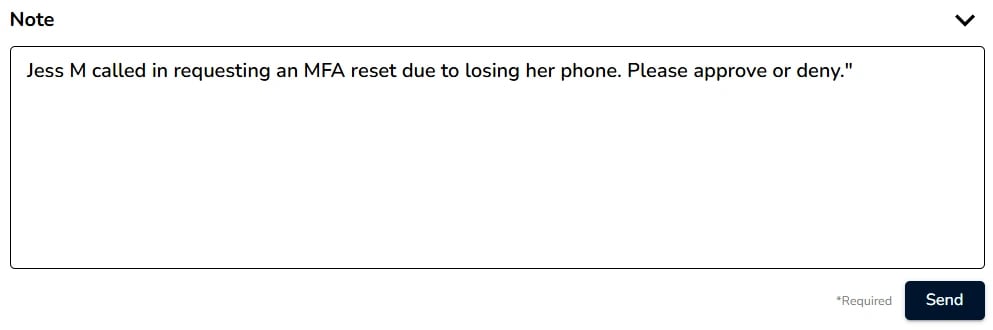
- Add a note explaining the request. For example: “Jess called in requesting an MFA reset, lost her phone. Please approve or deny.”
- Click Send.
- The manager receives the link and approves or denies the request.
- Their response is logged to the ticket notes, along with the message you sent.
- If the manager approves, the end-user shows as verified in the pod and the reset options become available.
- Send a link rather than a code.
- A code has to be relayed from the manager to the end-user and then back to you. A link goes straight to the approver, with fewer steps and less friction.
- Email link works too.
- You can use an email option instead of SMS if that suits the approver better.
- Designate approvers in advance.
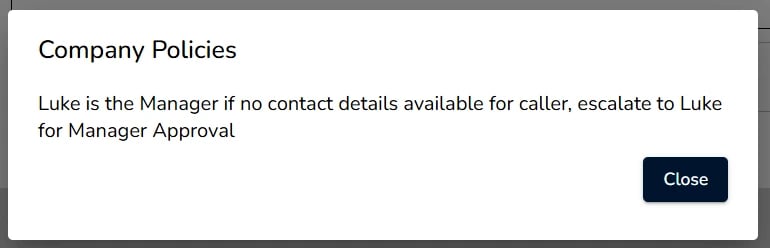
- If certain clients require a specific person to approve requests, set up a verification policy that flags that contact. Your technicians will then see a pop-up in the pod reminding them to route approvals through that person.
- This can be done through the Identity Management → Verification → Policies when logged in to MSP Process.
- Approval doesn’t change ticket status.
- The approval is recorded as a ticket note and updates the verified status in the pod. It does not change the PSA ticket status.
- Use the full pod.
- Manager approval requires the full pod, where you can change the recipient. In the condensed pod or One-Click Verification options, the SMS Link option sends to the end-user immediately.
Resetting an End-User’s M365 Password
- After verifying the end-user, click Reset Password.
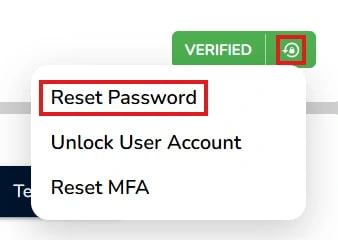
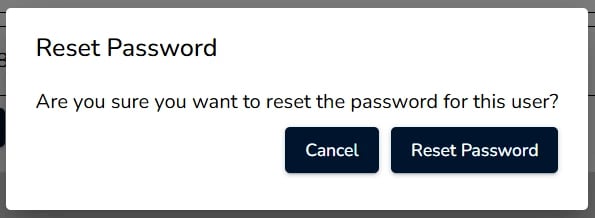
- Confirm that you want to reset the end-user’s password.
Resetting an End-User’s MFA
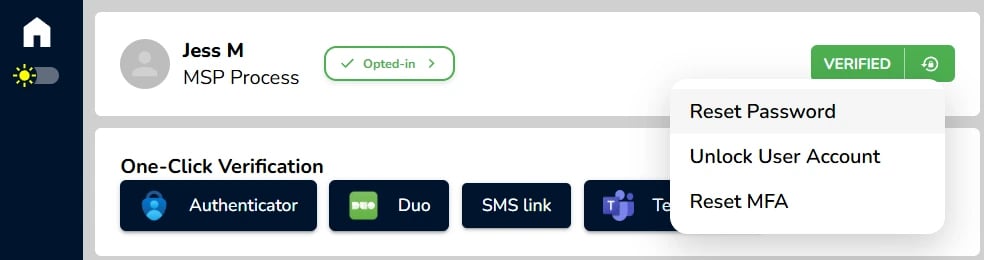
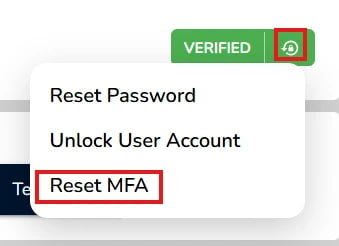
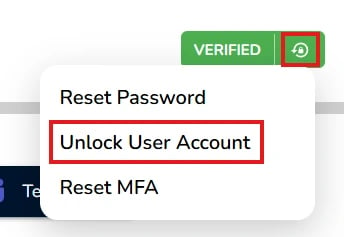
- After verifying the end-user, click the Lock with the circle around it next to the Verified Badge then select Reset MFA.
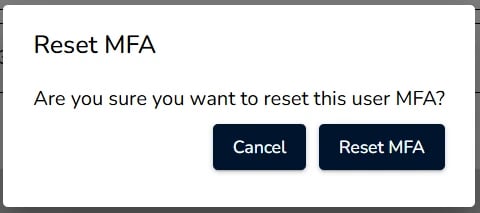
- Confirm that you want to reset the end-user’s MFA.
Resetting an End-User’s Account
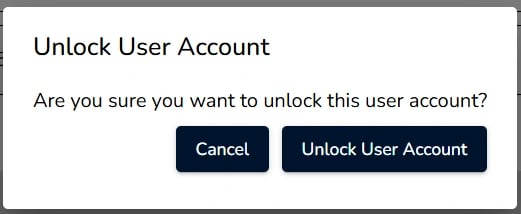
- After verifying the end-user, click the Lock with the circle around it next to the Verified Badge then select Unlock User Account.
- Confirm that you want to reset the end-user’s account.
Using AI VoiceAssist for Identity Management Actions
If you’ve deployed the Identity Management module and enabled End-user Verification in your AI VoiceAssist agent, the agent can reset a caller’s M365 password, MFA, or account during the call, once it has verified the caller’s identity. The outcome is the same as a technician-initiated reset.- For password resets, the caller receives a text message at the cell/mobile number on file, containing a Secure Data Sharing link with their new password.
- For MFA resets, the caller is prompted to re-register MFA at their next sign-in.
Pitfalls to Watch Out For
One-way directory sync
- If your environment syncs one-way (on-prem AD → Azure only), a cloud-side reset can’t push down to on-prem. Cloud-only accounts reset through the enterprise app, but synced on-prem accounts need the Domain Controller agent installed. Confirm your sync direction before choosing an approach.
Strict password policies
- If your AD enforces complex password rules (length, complexity, blocked words or characters), a generated temporary password could be rejected. Confirm your policy allows the temporary password so resets complete cleanly.
Windows Hello for Business environments
- If your users sign in primarily with Windows Hello (biometrics) rather than a password, SSPR may add less value. Consider where it fits in your workflow before rolling it out broadly.
Restricted Domain Controller privileges
- If your security model restricts standing privileges on domain controllers (least-privilege or JIT), review the agent’s requirements with your MSP Process contact before deploying so it aligns with your policy.
Common Troubleshooting
Reset options don’t appear after verifying a user
- Usually one of two things: the Identity Management enterprise app hasn’t been pushed to that tenant, or the module isn’t enabled for the tenant. Add the app under Security Integrations, or enable Password Reset Agents for the tenant — then have the user log out and back in.
On-prem reset didn’t reach Microsoft 365
- Confirm the account is synced via AD Connect and the DC agent is installed on the Domain Controller. Cloud-only accounts should be reset through the M365 enterprise app instead.
Temporary password was rejected at sign-in
- Check that the temporary password meets your AD password policy (complexity, length, blocked words). Adjust the policy or retry as needed.
Tips
Pair verification with SSPR.
- Since every reset sits behind verification, deploying them together gives the smoothest client experience and the cleanest audit trail.
The temporary password is one-time.
- Users should set their own password at next sign-in; the generated password is only meant to get them back in.