Overview
This article will walk you through how to invite end-users to any Client Portals created in your MSP Process platform.Steps to Connect Contacts to a Client Portal
Now that you have created a Client Portal using the Client Portal Creation KB article, the next step would be to invite your clients or end-users to use the Client Portal. NOTE: If you plan on deploying the Teams app version of the Client Portal, you do not need to invite your end-users to it; they’ll be automatically enrolled just by opening the app within their Microsoft Teams environment. This KB article only applies if your end-users do not use Microsoft Teams, and will be logging in directly to your Client Portal through its web URL. To access the list of your end-users who may be invited to the Client Portal, navigate to the left-hand menu to Contacts.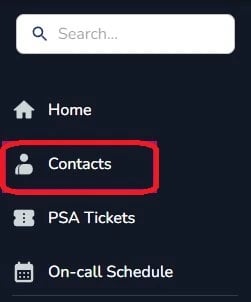
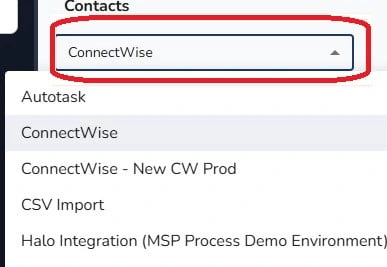
- Name
- Company
- Direct Phone
- Mobile Phone
Singular Client Invite
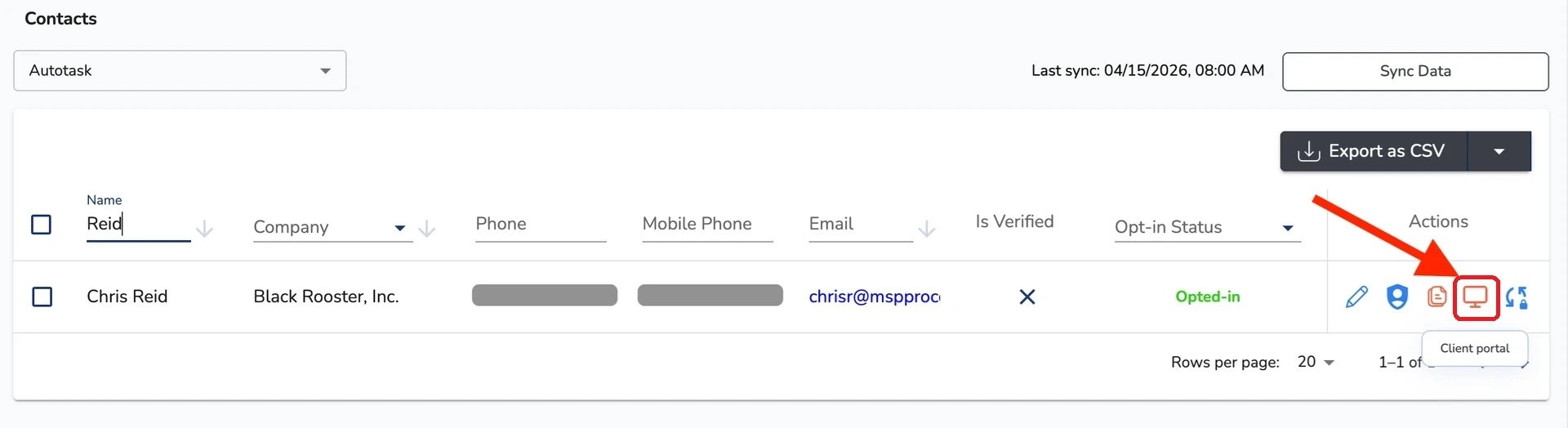
You may wish to only invite one specific end-user to your Client Portal. This is often something you’d do to invite yourself to the Client Portal, so that you can confirm that everything is working as expected. You can send a singular invite in two ways. To start, you will need to find the user that you would like to invite. Once you have located the contact you wish to add to the Client Portal. Upon locating the end-user, you can either use the options that appear in the top menu, or through the actions options, using the computer icon on the right-hand side.Method 1
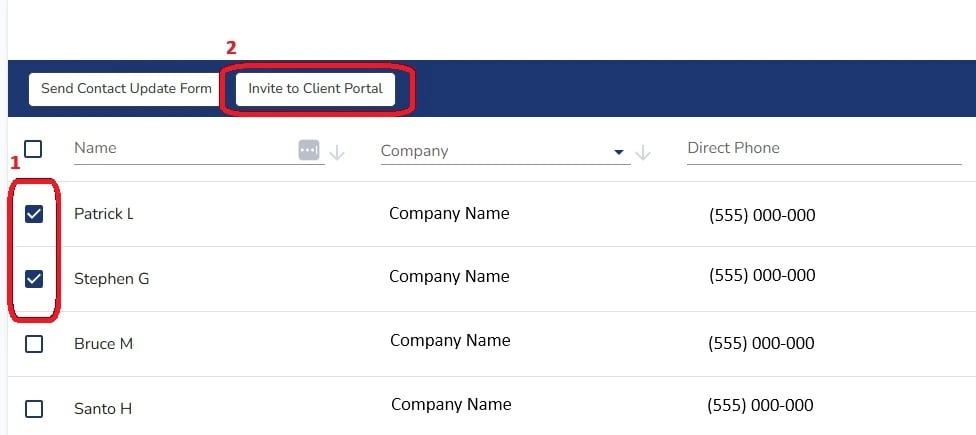
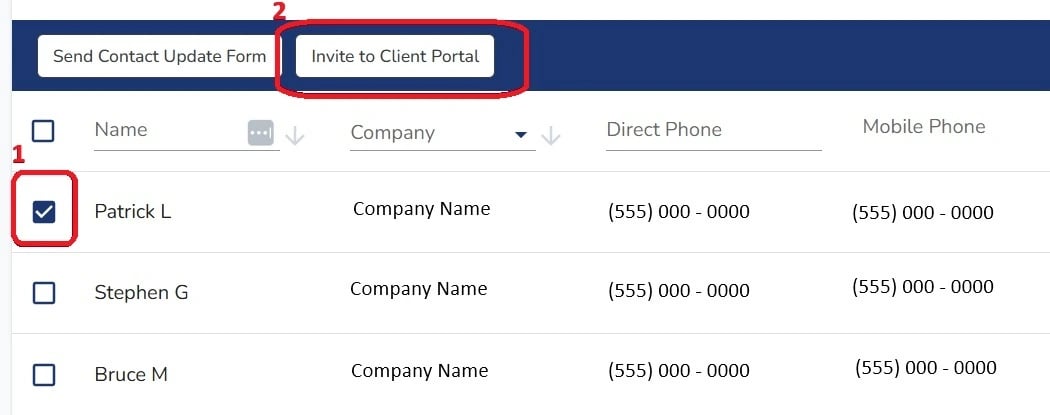
To use the menu that will appear at the top, you will do the following:- Select the checkmark box to the left of their name.
- Select “Invite to Client Portal” above the list of contacts in the blue header bar that appears at the top of the table.
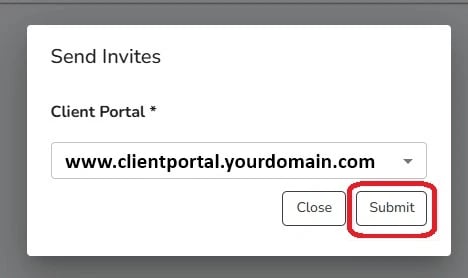
- In the Send Invites popup window, select the correct Client Portal you wish to add the contact to,
- Select Submit
Method 2
To use the Actions options, the Computer Icon, on the right-hand side, you will proceed as the following:- In the Actions column, click on the “Monitor” button that sends them an Invite email
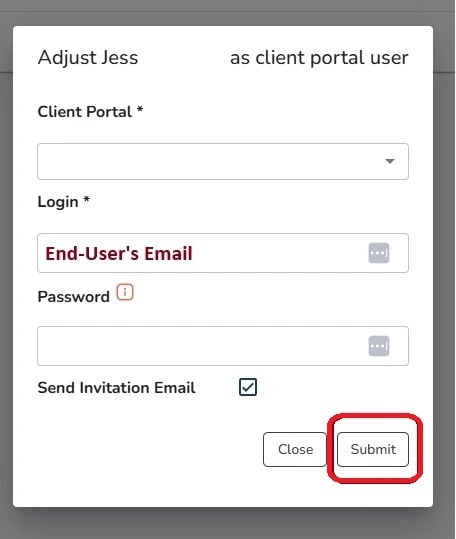
- In the pop-up window that appears:
- Choose which Client Portal you wish to invite your end-user to
- (Optionally) specify their password. If you leave the Password box blank, the user will be requested to update/create their password on the first login.
Bulk Client Invite
You’ll often want to invite an entire Company of end-users to the Client Portal; the Contacts page in MSP Process makes that easy to do in just a few clicks. To send bulk end-user invitations, simply select all users you’d like to invite. Once selected, follow the same steps used for Method 1 in the single end-user invitation steps.