Introduction
Duo (https://duo.com) is a popular identity verification platform. You can use it in MSP Process to achieve two goals:- To secure the login process of anyone looking to access your MSP Process account at https://app.mspprocess.com. This capability requires the Duo Web SDK to be configured. Click here for the KB article that outlines how to set this up.
- During the end-user verification process; Duo can be used instead of sending the user a verification code via e-mail or SMS. This capability requires the Duo Admin API to be configured.
Step 1: Protecting the ‘Admin API’ Application in Duo
What is the Admin API? The Admin API provides administrative access to your Duo environment. MSP Process uses it to retrieve information about your parent account and sub-accounts in Duo, and to retrieve information about the users in that account/sub-accounts. NOTE: You’ll only need to do this part once, at the ‘parent’ account level in Duo.Steps to Take in the Duo Admin Portal:
- Login to the Duo Admin portal (https://admin.duosecurity.com/) - you must be an Owner-level user in Duo
- From the left-hand menu, navigate to Application -> Applications
- Click the Add Application button
- Search for “Admin API” in the Search field
- Click on the Add button beside Admin API
- In the Basic Configuration section, change Name field to say “Admin API for MSP Process”
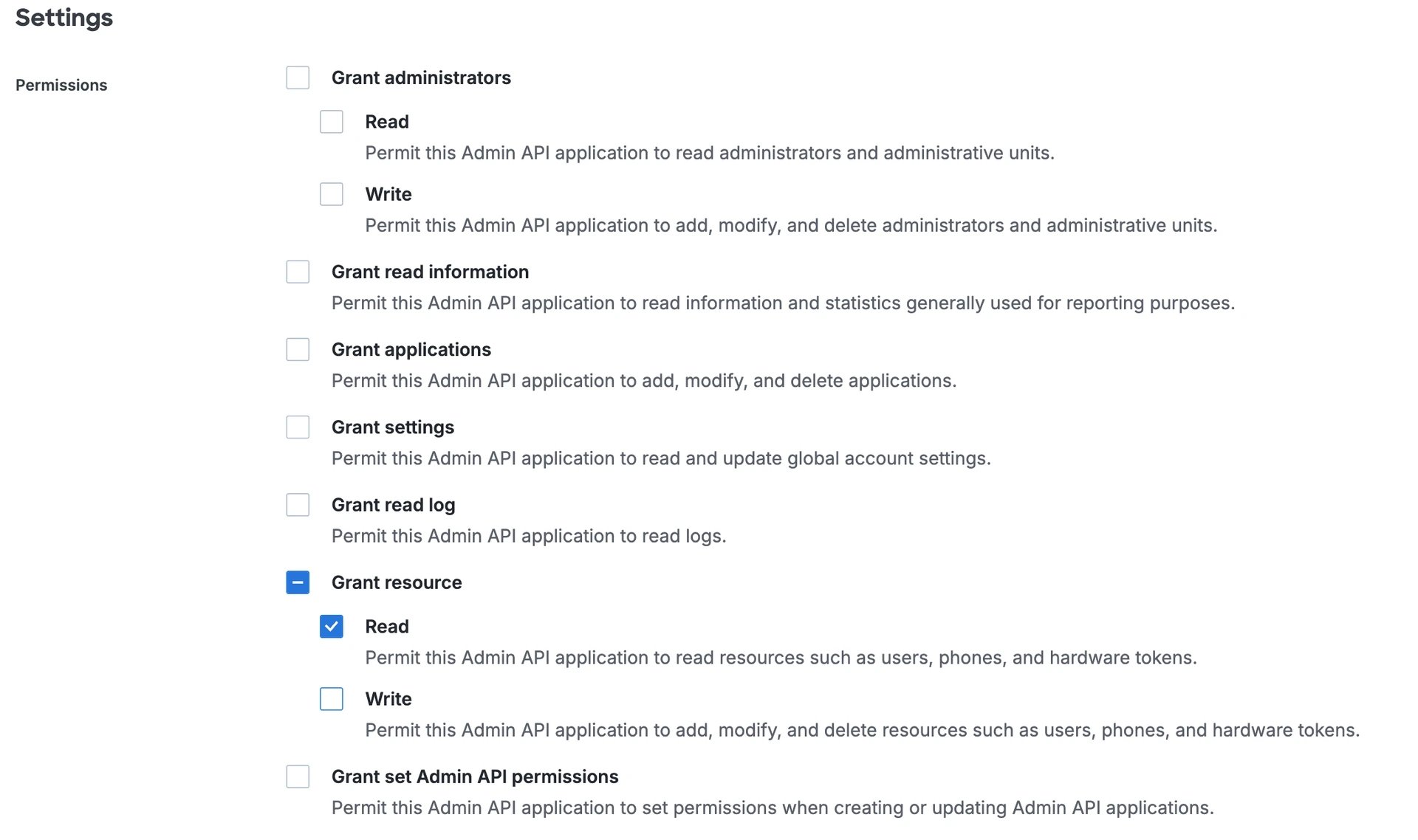
- In the Settings section, in the Permissions area, enable the Grant resource -> Read permission
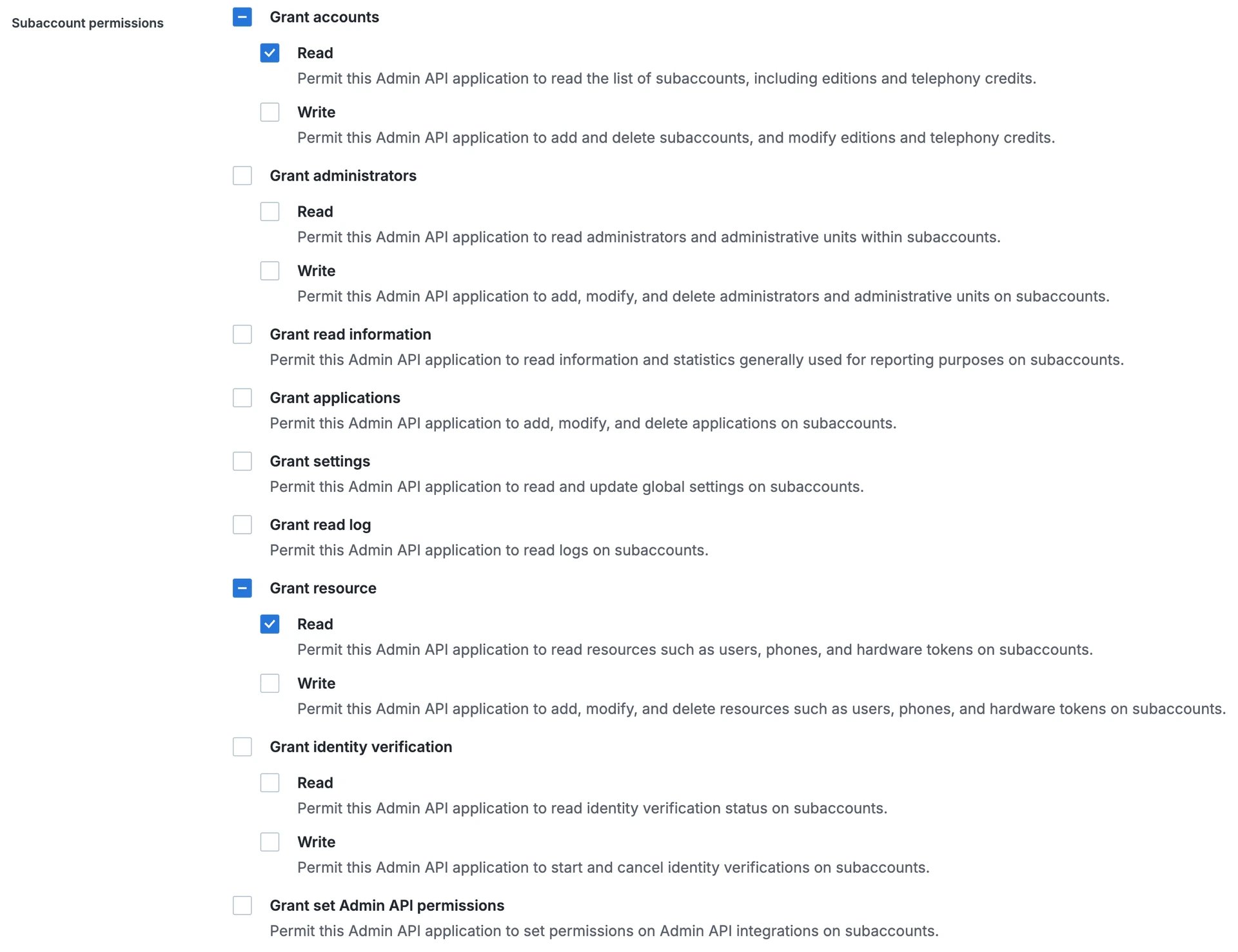
- In the Subaccount permissions area, enable the Grant accounts -> Read and Grant resource -> Read permission
- In the Details section, copy the Integration Key, Secret Key and API Hostname; you’ll need them later
- Click Save
Steps to Take in MSP Process:
- Login to the MSP Process portal (https://app.mspprocess.com)
- Navigate to Settings -> Integrations -> Security Integrations
- Click the Duo Admin button
- Specify a name for the integration, and then enter the Integration Key, Secret Key and API Hostname from what you setup earlier in the Duo Admin Portal.
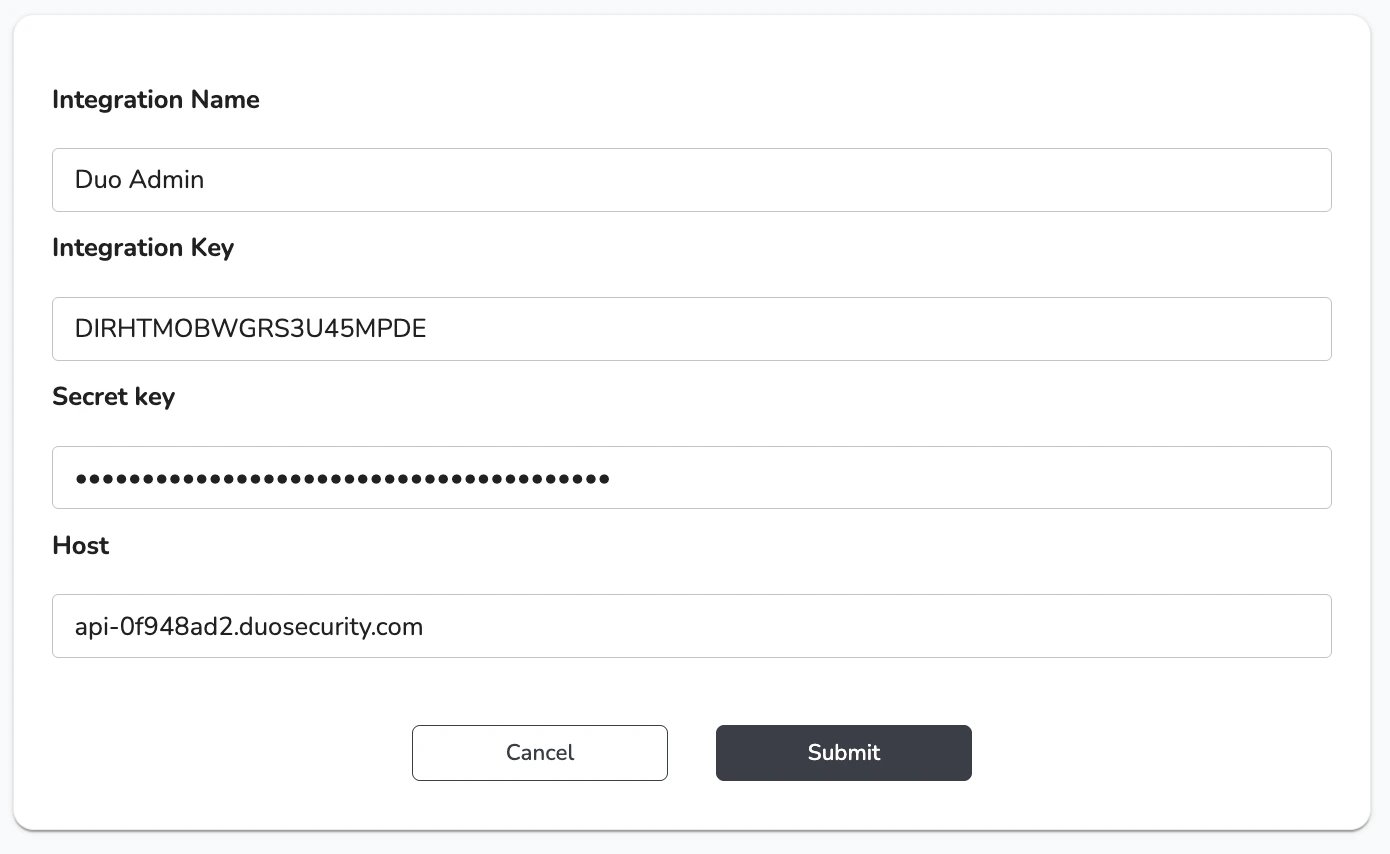
- Click Submit when you’re done.
Step 2: Protecting the ‘Auth API’ Application in Duo
What is the DUO Auth API? Duo Auth API is a low-level, RESTful API for adding strong two-factor authentication to your website or application. MSP Process uses the Auth API to send your end-users a push notification that verifies their identity. NOTE: You’ll need to repeat the steps in this section for each sub-account that you want MSP Process to be able to access.Steps to Take in the Duo Admin Portal:
- Login to the DUO Admin portal (https://admin.duosecurity.com/)
- From the left-hand menu, navigate to Application -> Applications
- Click the Add Application button
- Search for “Auth API” in the Search field
- Click on the Protect button beside DUO Auth API
- In the Basic Configuration section, change Application Name field to say “Auth API for MSP Process”
- Also in the Basic Configuration section, choose the Enable for all users option for User access:
- In the Details section, copy the Integration Key, Secret Key and API Hostname; you’ll need them later
- In the Settings section, enable “Simple” username normalization:
- Click Save
Steps to Take in MSP Process:
- In MSP Process, navigate to Settings -> Integrations -> Security Integrations
- Click the Add new integration button
- Click the Duo Auth API button
- Specify a name for the integration, and then enter the Integration Key, Secret Key and API Hostname from what you setup earlier in the Duo Admin Portal.
- Click Submit when you’re done.
Step 3: Synching Contacts from Duo into MSP Process
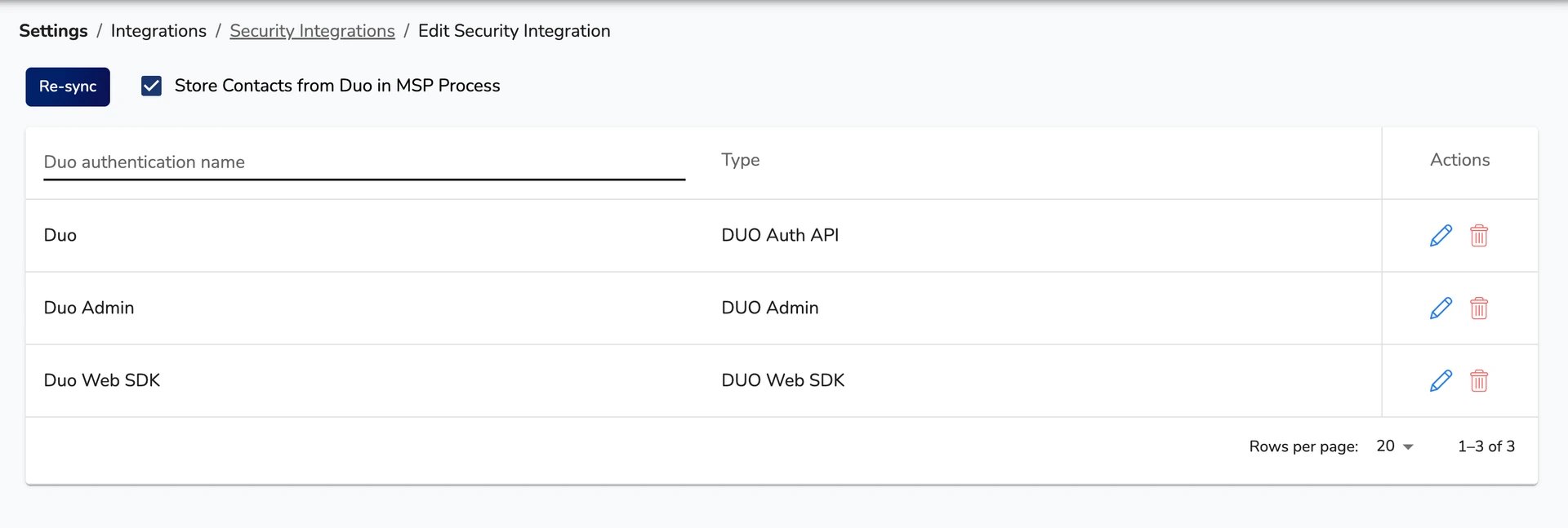
The final step in this workflow is to sync contacts (users) from Duo into MSP Process. This is an optional step, but a very useful one - by synching those contacts into MSP Process, we’ll be able to enable/disable the Duo button in our Pod/Insight. This’ll make it so that your technicians will quickly understand if they can send a caller a Duo push notification to verify their identity, or not.- Login to the MSP Process UI (https://app.mspprocess.com) as an Admin-level user
- Navigate to the Settings -> Integrations -> Security Integrations page
- Click on the Duo Authenticator “card”
- At the top of the page, enable the Store Contacts from Duo in MSP Process option, and then click the Re-sync button