

Overview
CallScribe adds fully logged, recorded outbound calling directly inside your PSA ticket (the ConnectWise pod or the Halo insight). Every outbound call a technician places is captured with a live transcript, an AI summary, sentiment analysis, and an automatic time entry written back to the ticket. CallScribe is the outbound counterpart to AI Voice Assist, which handles inbound calls. Setup takes about five minutes and does not require porting numbers or changing your VoIP configuration.Before You Start
CallScribe must be enabled on your tenant before it appears in the platform. Contact your MSP Process representative to have it turned on. You also need your PSA integration (ConnectWise or Halo) already connected, since CallScribe operates inside the ticket.Step 1 — Open CallScribe
In the MSP Process platform, go to AI Service Desk → CallScribe → Settings.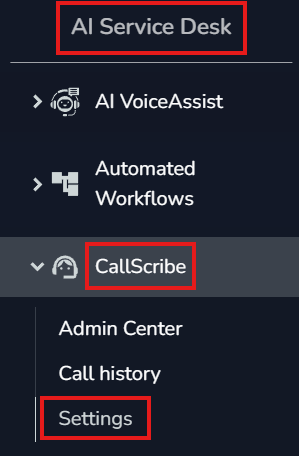
Step 2 — Verify Your Outbound Caller ID Number
This is the number your outbound calls will display to the person you are calling — typically your main company or HQ line. To have a technician’s own number appear as their caller ID, use the steps below:- Click Verify a number and enter a phone number you own.
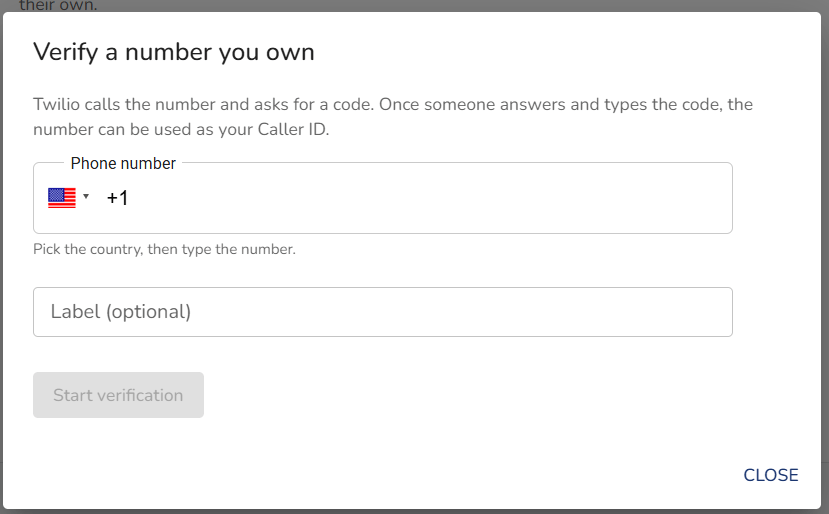
- Select the country code, enter the technician’s phone number and a label, then click Start verification.
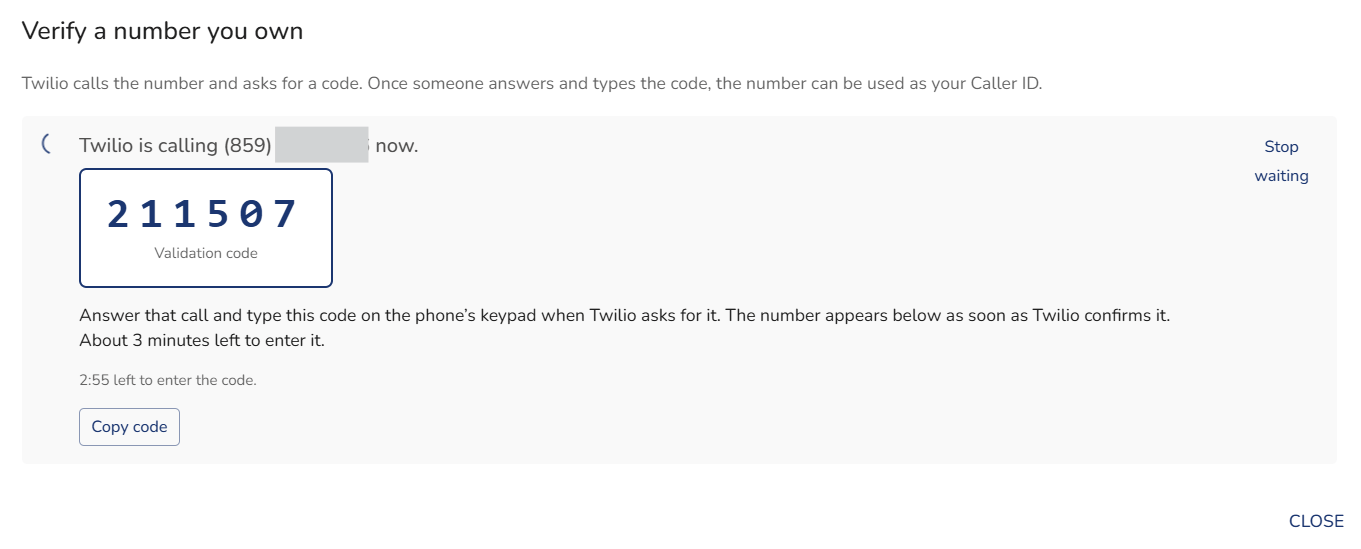
- MSP Process places an automated call to that number.
- Answer the call and enter the verification code provided on the screen.
Step 3 — Configure Recording and Consent
On the CallScribe screen, open the Recording and consent tab.
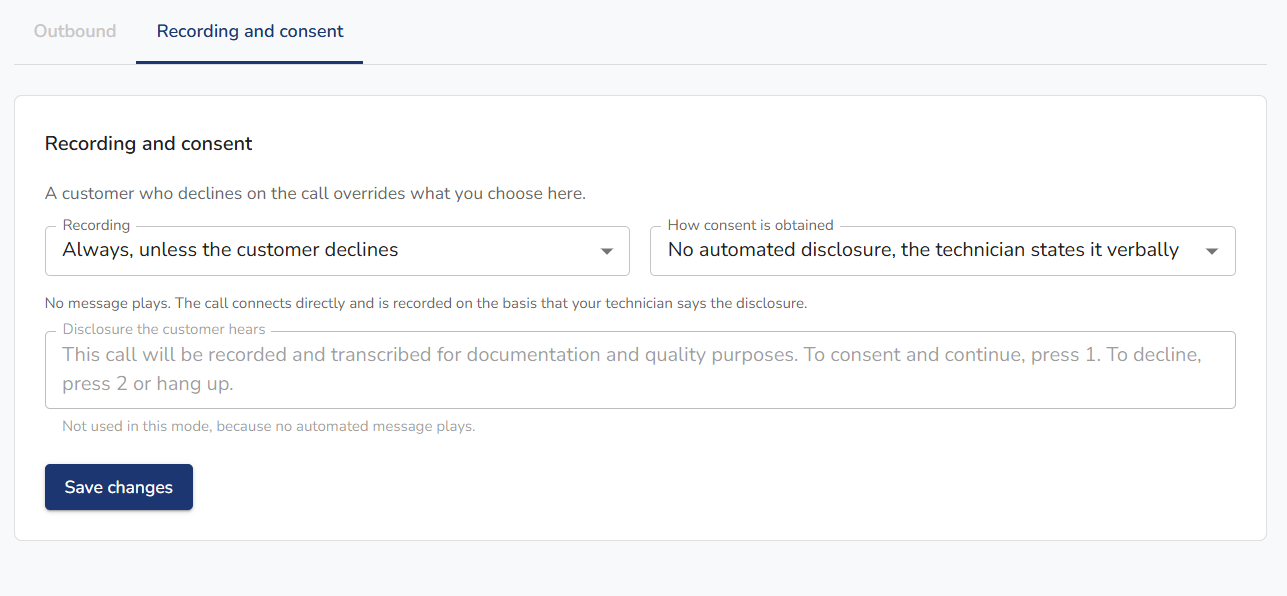
Step 4 — Manage Technician Access
Go to the Admin Center in the left-hand navigation. Here you can see who has access to CallScribe and set per-technician settings that differ from the default.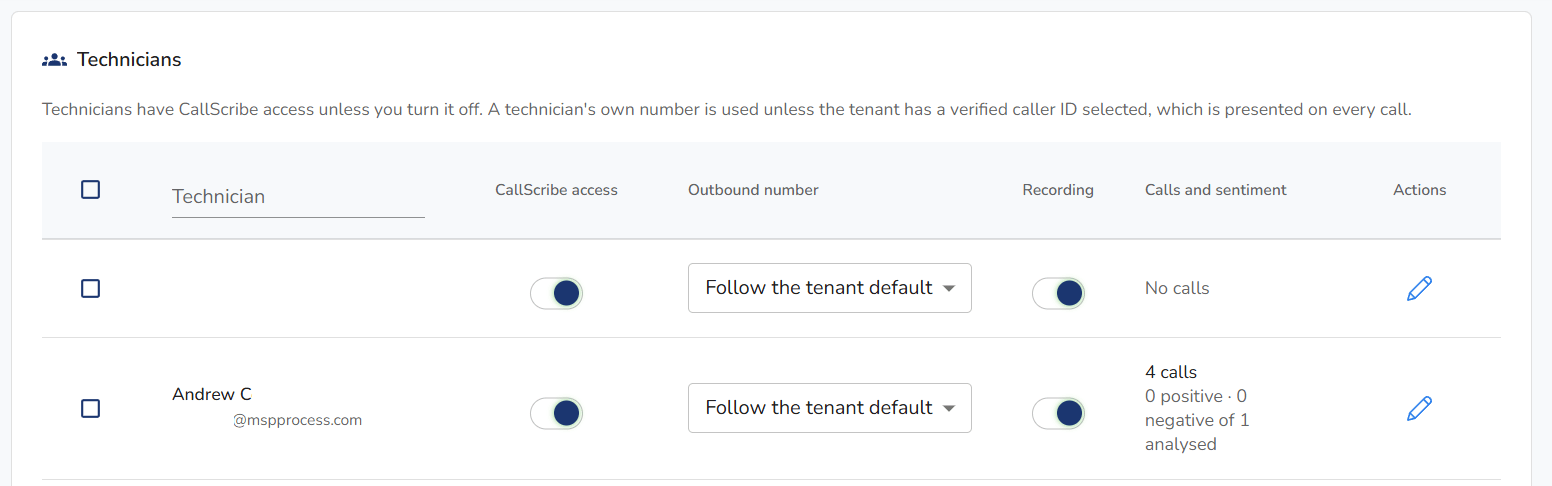
ConnectWise Pod Sizing
The ConnectWise pod is available in a full-height and a half-height (“skinny”) version. Many partners run the half-height pod, or place both. Adjust this in your pod configuration to fit your ticket layout.Known Limitations
Extensions are not supported.- Number verification calls the main line directly and cannot dial an extension. If your verified number routes through a phone tree, adjust your incoming call handling so the verification call can be answered.
- If the number you are verifying sits behind an IVR that intercepts the automated verification call, the call may fail to connect and verification can be blocked. If you hit this, contact your MSP Process representative.