Using CallScribe
If you have not setup CallScribe in your MSP Process tenant, please review the CallScribe: Admin Setup KB for further information. Once CallScribe is set up, technicians place outbound calls straight from inside a PSA ticket. Every call is transcribed, summarized, sentiment-scored, and written back to the ticket with an automatic time entry — no manual note-taking or timekeeping required. CallScribe lives inside the ticket: the CallScribe pod in ConnectWise, or the insight panel in a Halo ticket.Placing an Outbound Call
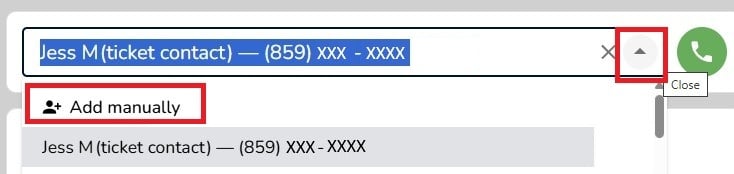
Open the ticket you want to call about. By default, CallScribe dials the phone number of the contact associated with that ticket.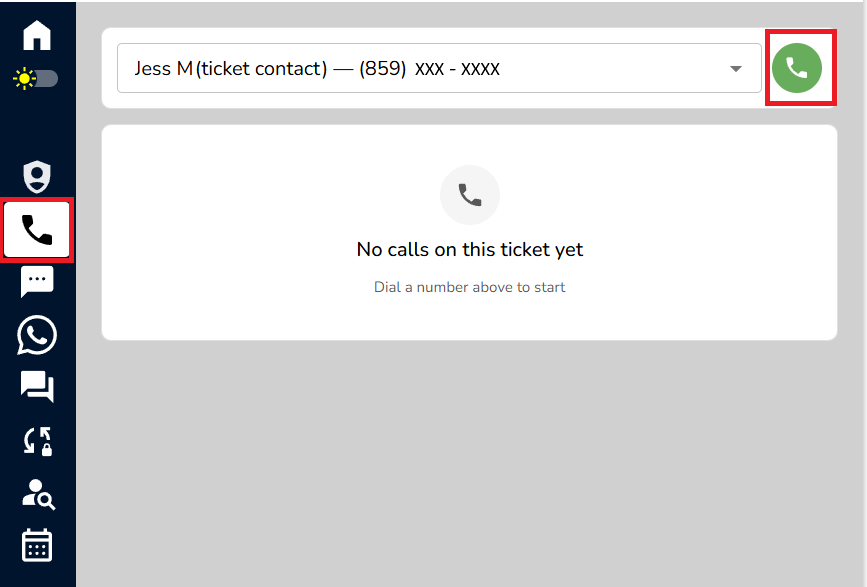
During the Call
A live transcript displays as you talk, so there is no need to jot notes by hand. The technician stays inside the Halo or ConnectWise ticket for the entire call.What CallScribe Writes Back to the Ticket
When the call ends, CallScribe automatically populates many areas of detail. To view those further, just click the arrow next to the phone icon.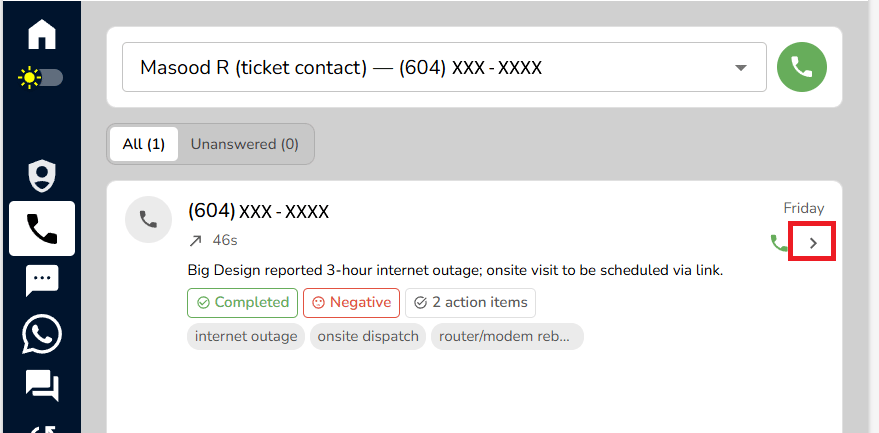
Summaries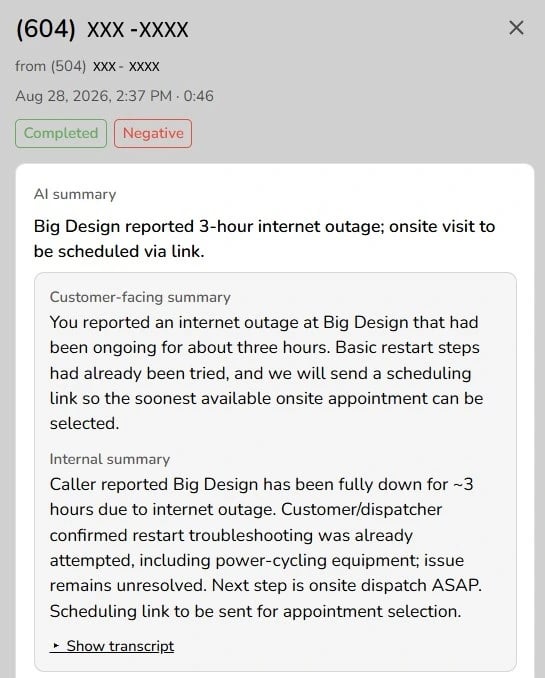 | An AI summary of the call, plus a separate internal summary and a customer-facing summary, so you can surface the right level of detail to each audience. |
|---|---|
Sentiment analysis | Overall sentiment for the call, scored from both the technician side and the end-user side. |
Action items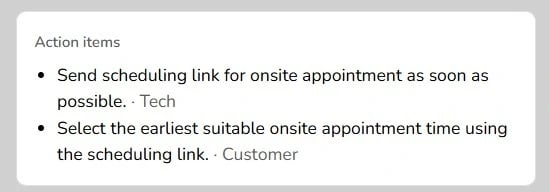 | A checklist of follow-ups pulled from the conversation, so nothing gets missed. |
| Resolution status | Whether the call resolved the issue or ended with a next step, such as a scheduled callback. |
Automatic time entry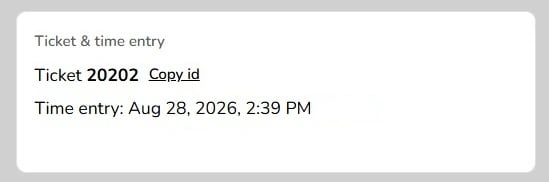 | A time entry covering only the technician’s talk time. You can adjust it, and a minimum entry length can be enforced in setup. |
Notes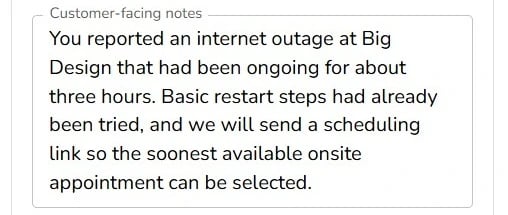 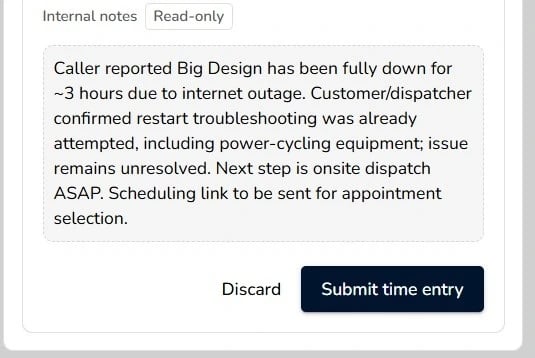 | Client-facing notes and internal notes, surfaced separately on the ticket. |
Recording and transcript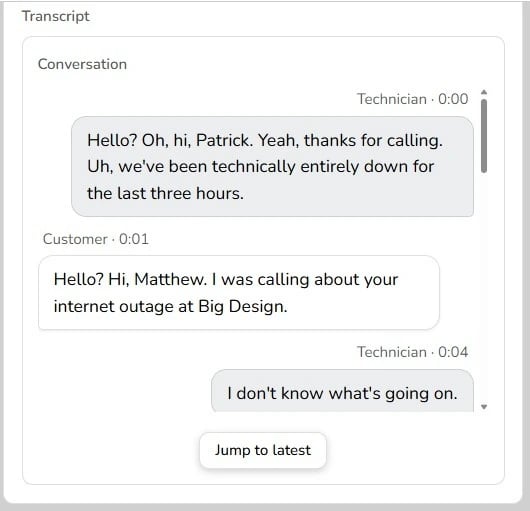 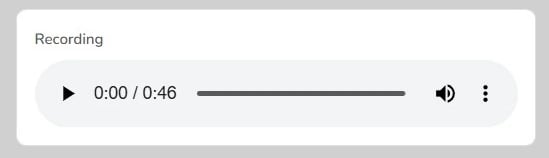 | The full call recording and complete transcript are saved to the ticket at the attachment level. |
Notifications
CallScribe can route a call’s summary or notification to a specific user or a group, so the right people are looped in without manual forwarding.Re-running the AI
If a summary, sentiment score, or transcript needs cleanup, re-run the intelligence on that call to regenerate the output.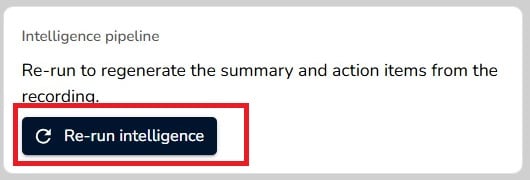
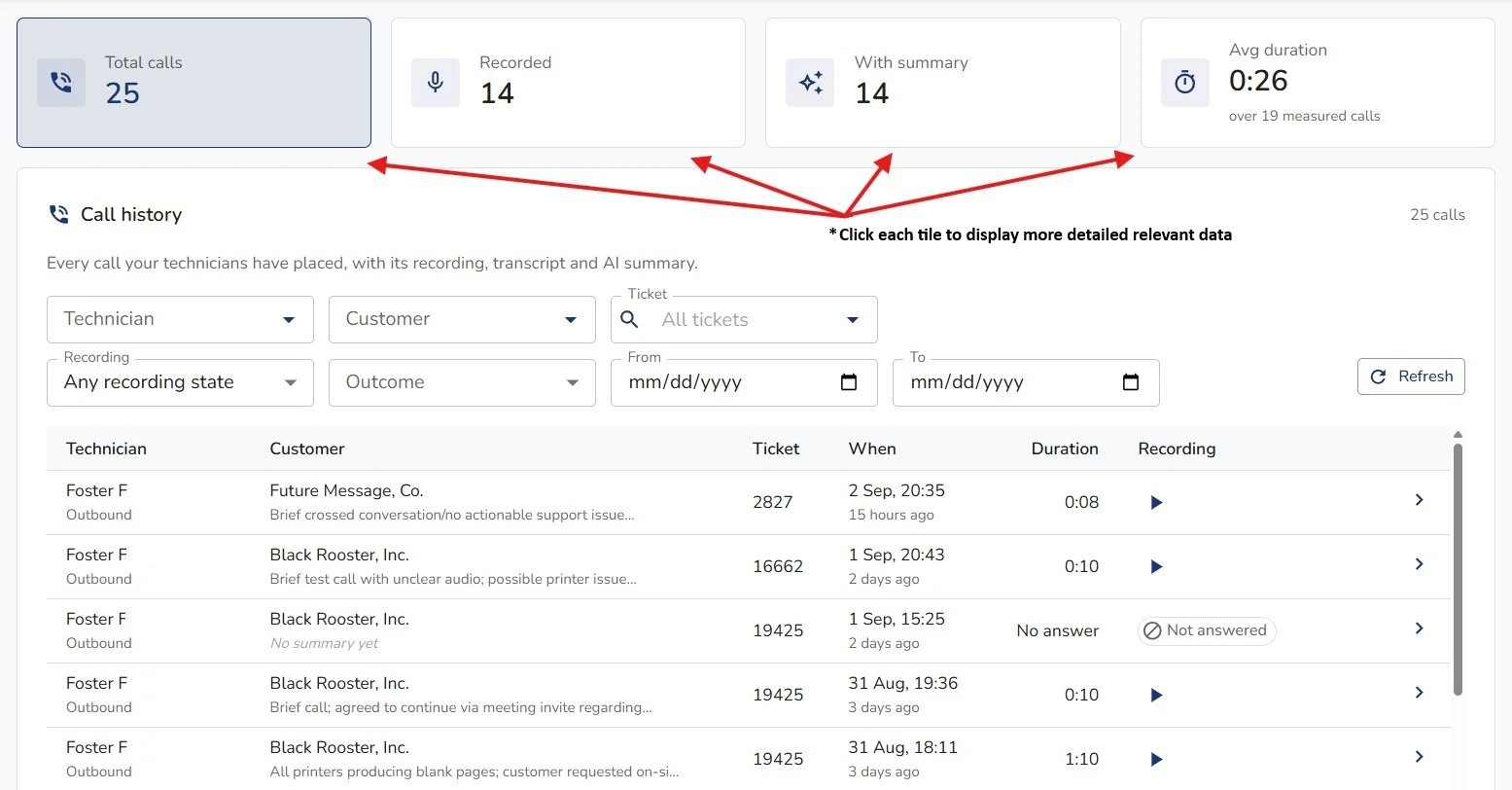
The CallScribe Dashboard
Beyond the per-ticket view, CallScribe provides a management dashboard covering:- Total calls and average call duration
- Number of technicians making calls
- Call volume per day, with adjustable filters
- Sentiment trend across calls (negative / neutral / positive)
- A per-technician summary