

{TicketUrl} variable directly into the message body will result in plain, unclickable text in Teams. This article explains how to properly format the variable so that it generates a clickable hyperlink.
The Issue: Unclickable Raw Variables
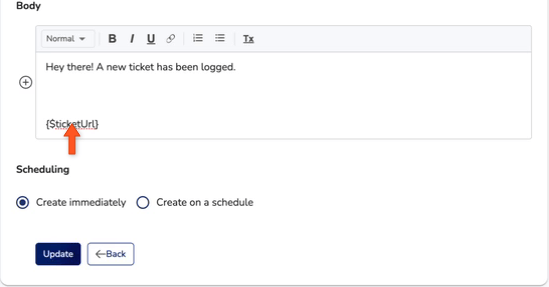
If you insert the{TicketUrl} variable into the notification body using the plus icon, it will pass the raw URL string to Microsoft Teams.

How to Make the Link Clickable
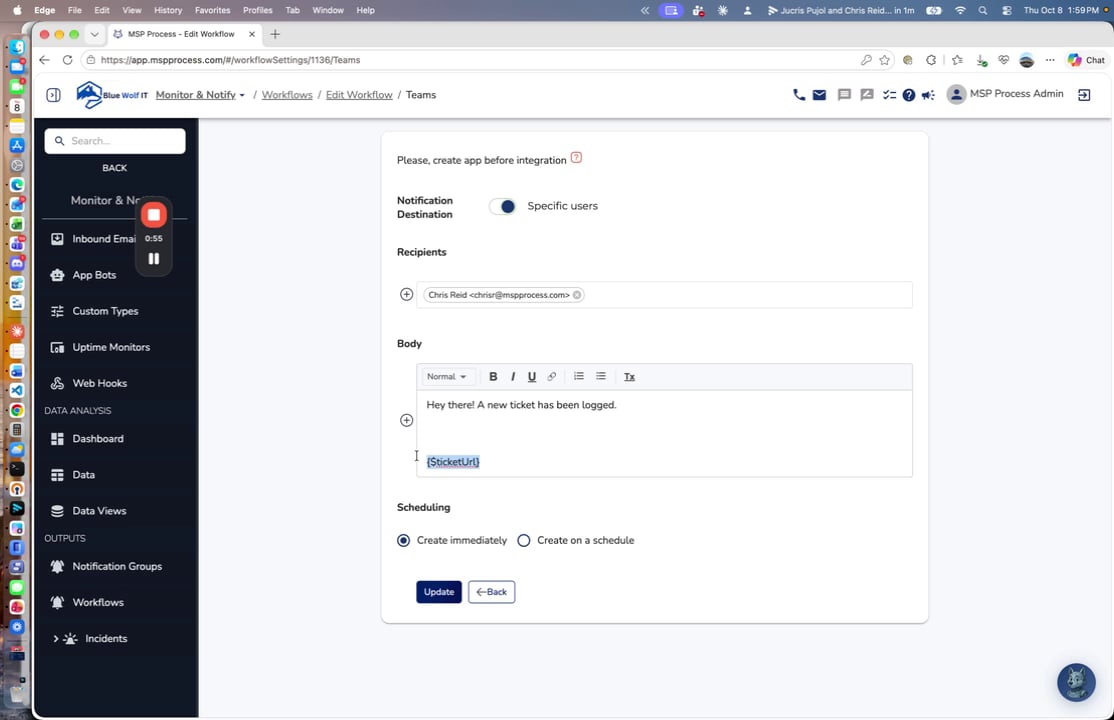
To ensure your links function properly in Teams, you need to embed the variable within a standard HTML hyperlink.- In your MSP Process workflow settings, delete the raw
{TicketUrl}variable from the message body.
- Type the text you want to act as the clickable link (for example, “Click here to open the ticket”).
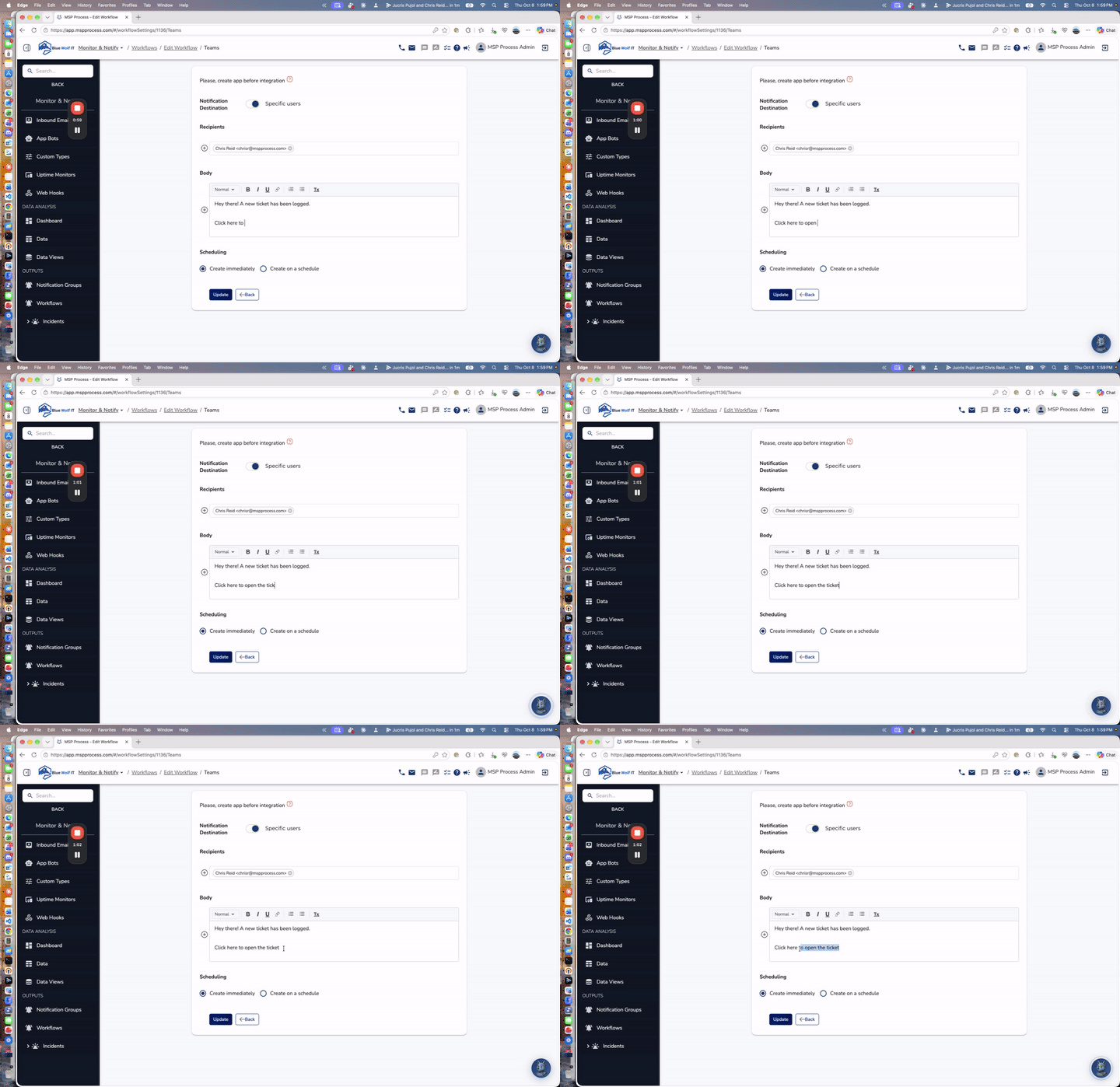
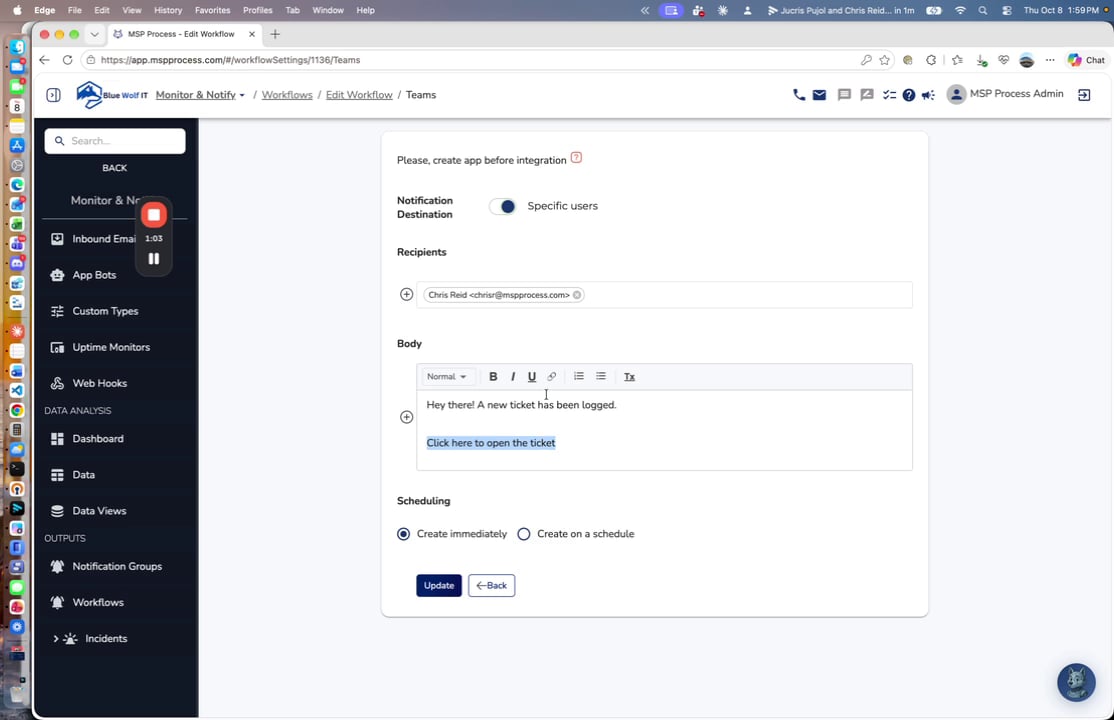
- Highlight the text you just typed and click the hyperlink icon in the text editor toolbar.
- In the hyperlink dialog box, enter the
{TicketUrl}variable directly into the URL field instead of a standard web address, then click OK.
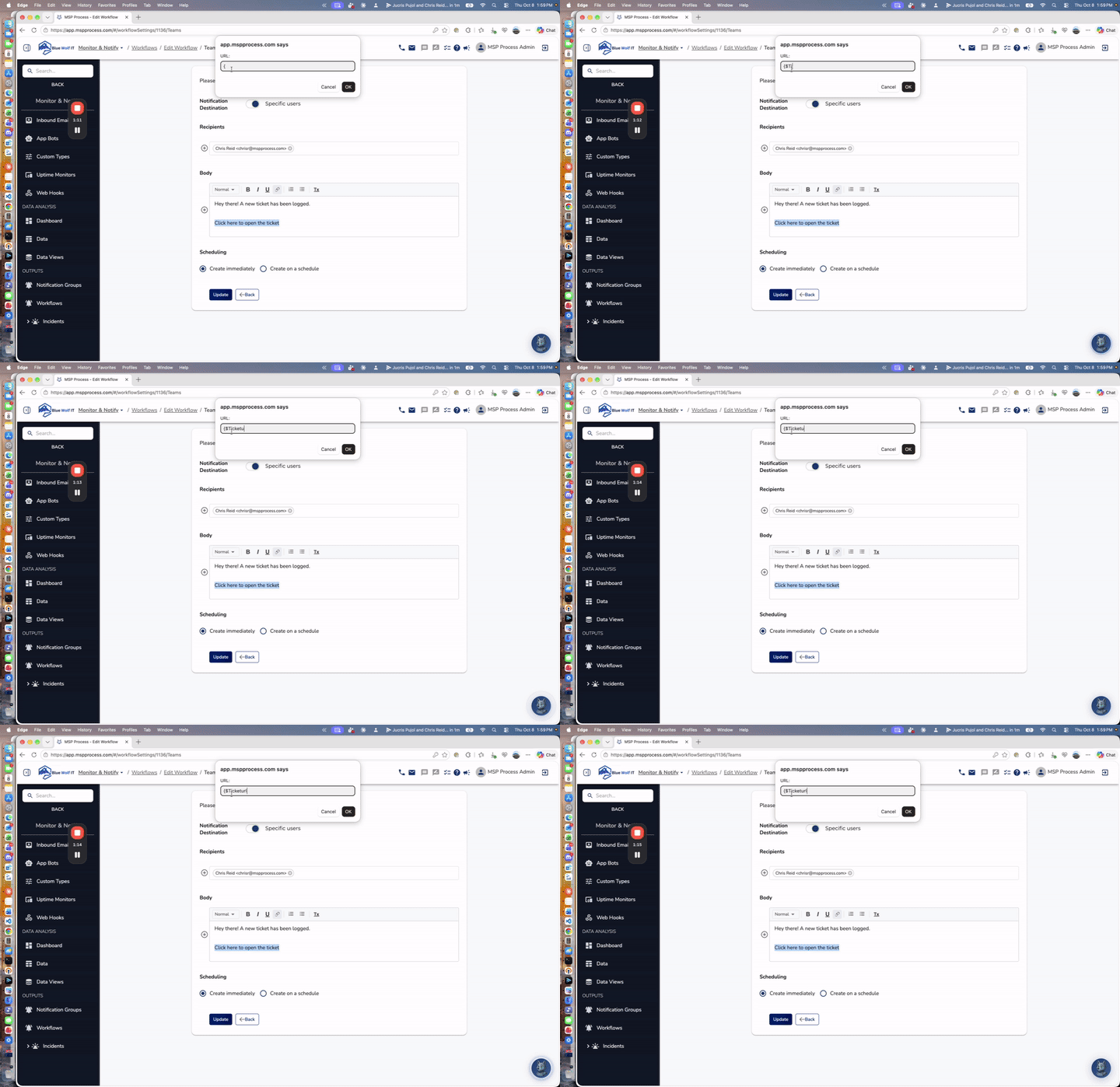
- Click the Update button at the bottom of the page to save your changes to the workflow.
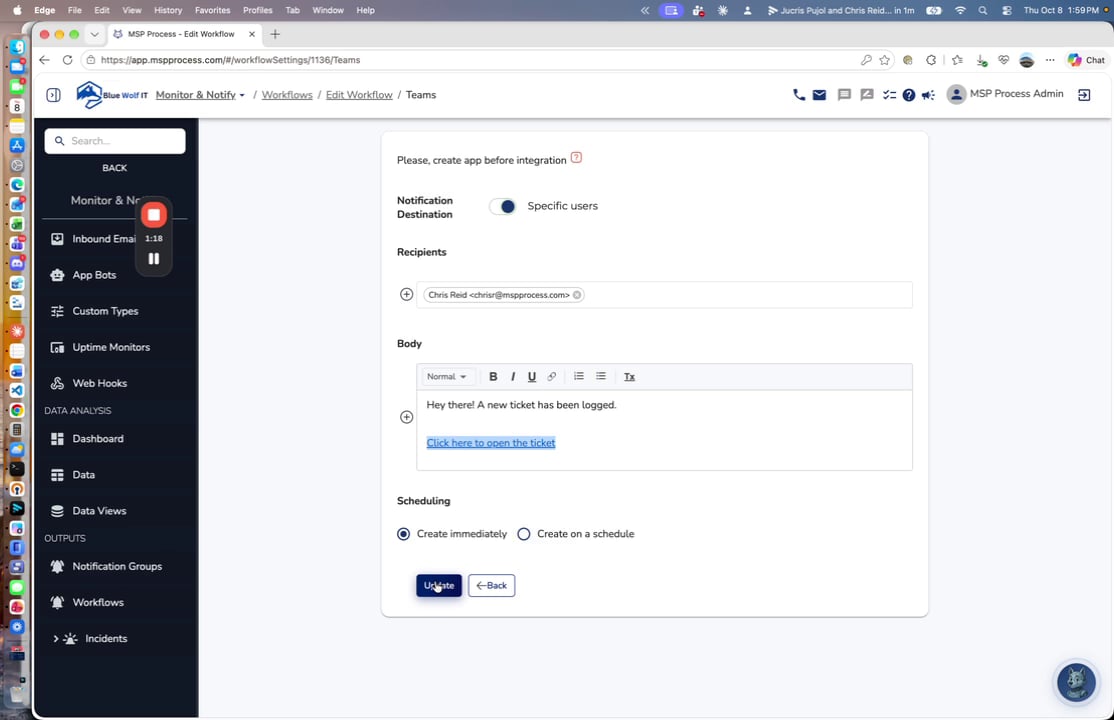
The Result
The next time a ticket triggers this workflow, Microsoft Teams will display a neatly formatted, clickable link using the text you specified.
Note: For more information on configuring Teams notifications and workflows, see our guide on Sending Messages to a Microsoft Teams Channel.