

What Is the On-Call Schedule Wizard?
The On-Call Schedule Wizard walks you through building a rotating on-call schedule in a few steps. You choose who is on call, when, and how often the rotation changes, and MSP Process builds the calendar for you. The wizard sets who is on call and when. To alert those people about tickets, you also need a workflow that creates an incident (see “Schedules and Alerts”). If you do not have the Incident Module turned on for your tenant, please reach to support for assistance. The original schedule editor is still available as the Classic setup. Use the wizard for most schedules and the Classic setup for anything the wizard can’t cover yet. Both are described in this article.Prerequisites
- A Notification Group that contains the technicians who will be on call
- An admin-level account in MSP Process account.
- Admins create and edit schedules, and technicians see a read-only view.
- Your team’s time zone, rotation start date, on-call hours, and rotation order
Create a Schedule
- Navigate to On-Call Schedule on the left-hand side
- Click New Schedule.
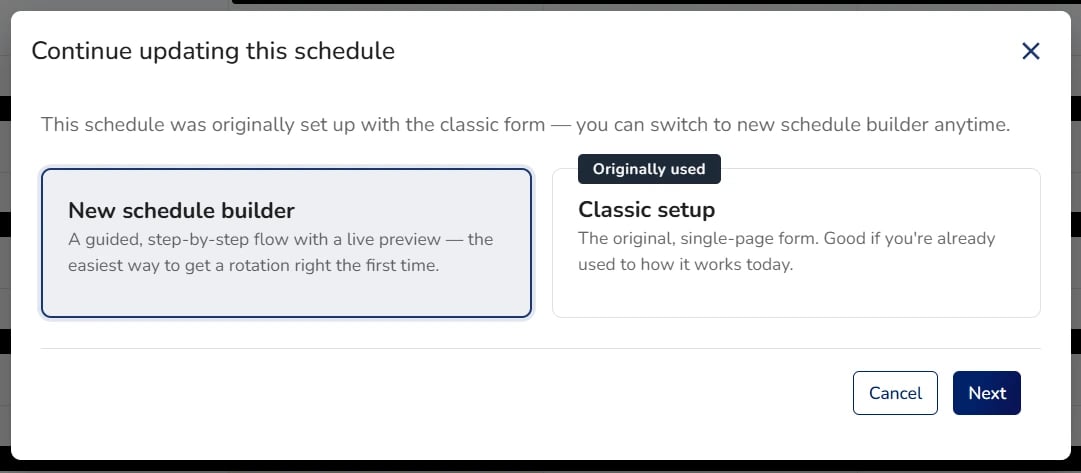
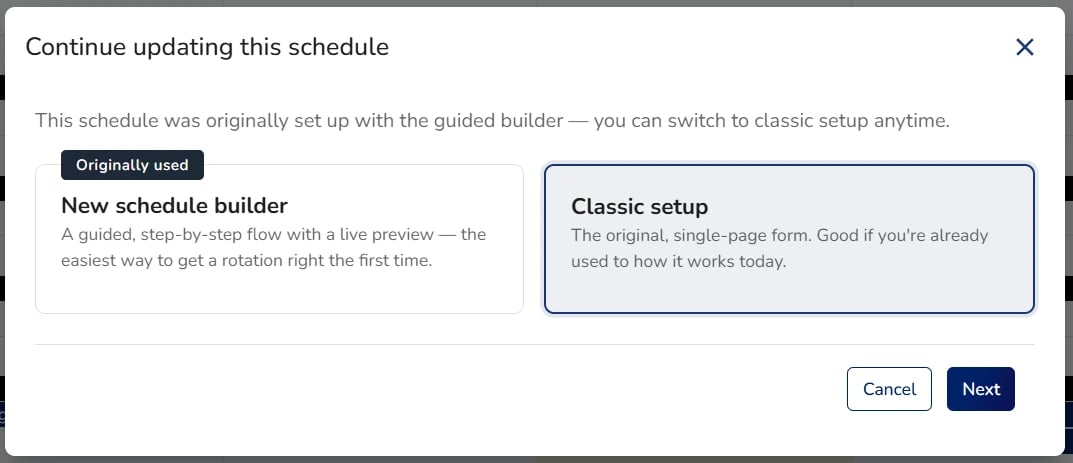
- In the setup pop-up, select New schedule builder (the wizard). It is pre-selected and marked as recommended. The other option is Classic setup.
- Choose the time zone and a start date for the schedule.

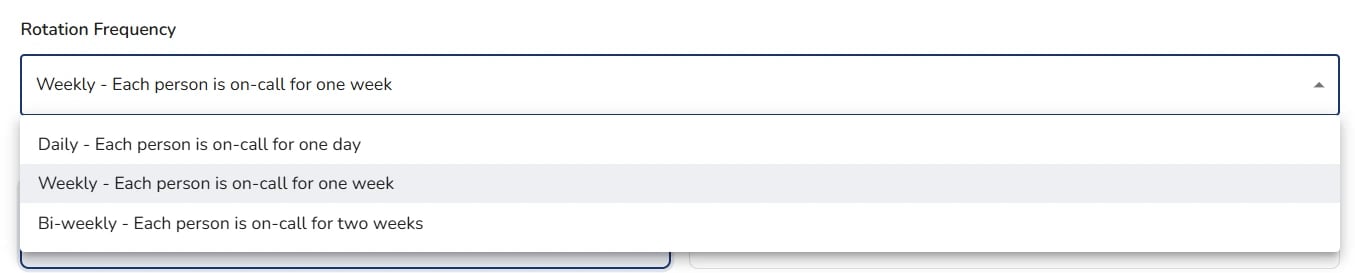
- Choose how often your team rotates: daily, weekly, or bi-weekly.
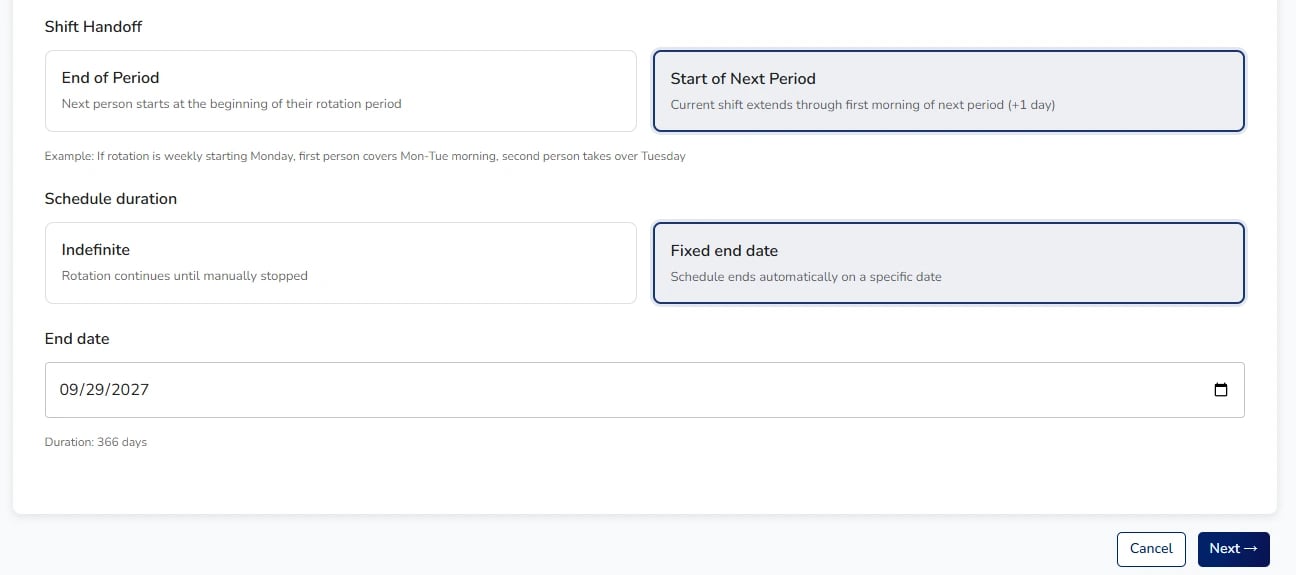
- Choose when the shift handoff happens: at the end of the last day (midnight) or at the start of the next period, such as Monday morning.
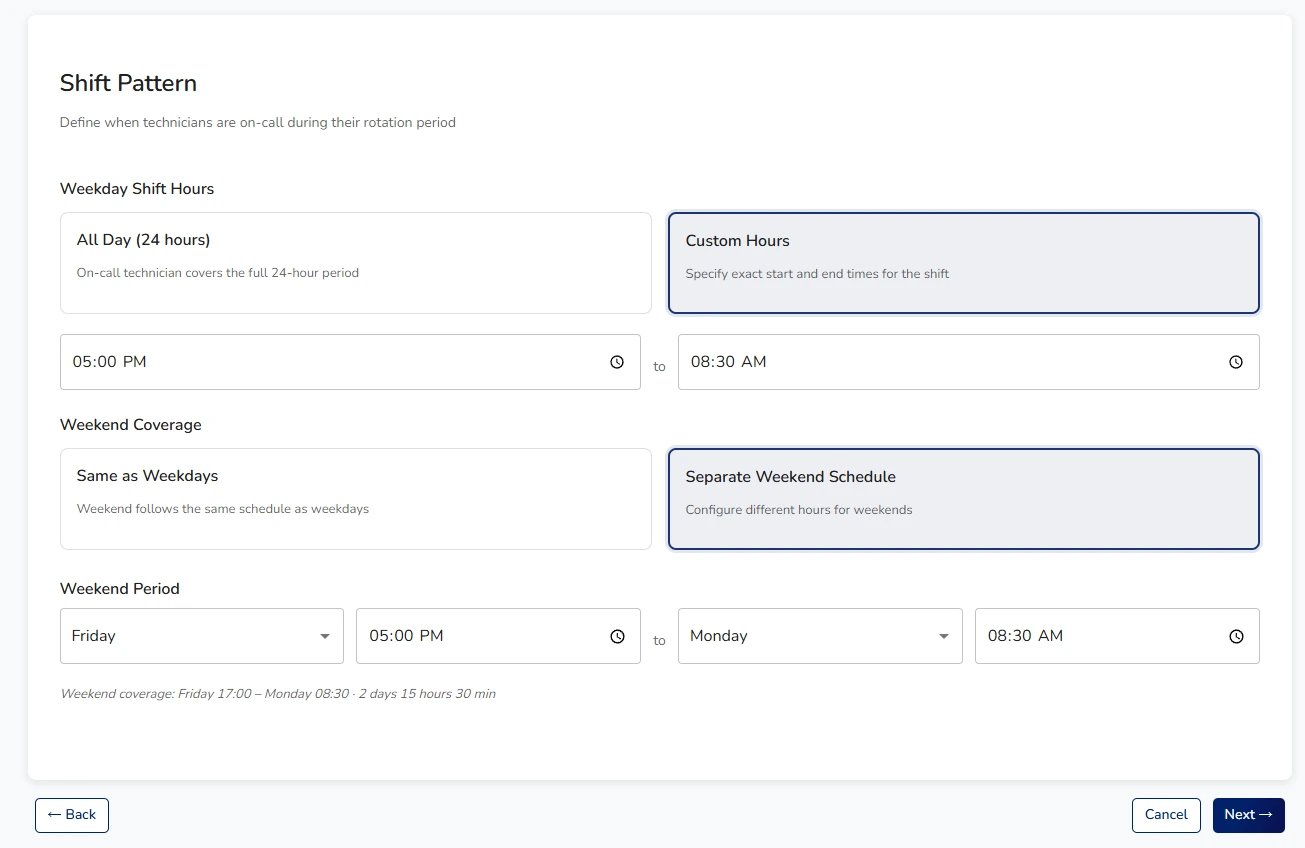
- Enter your weekday on-call hours, for example 5:00 PM to 8:30 AM.
- Enter your weekend on-call hours. Choose the day the weekend coverage starts and the day it ends.
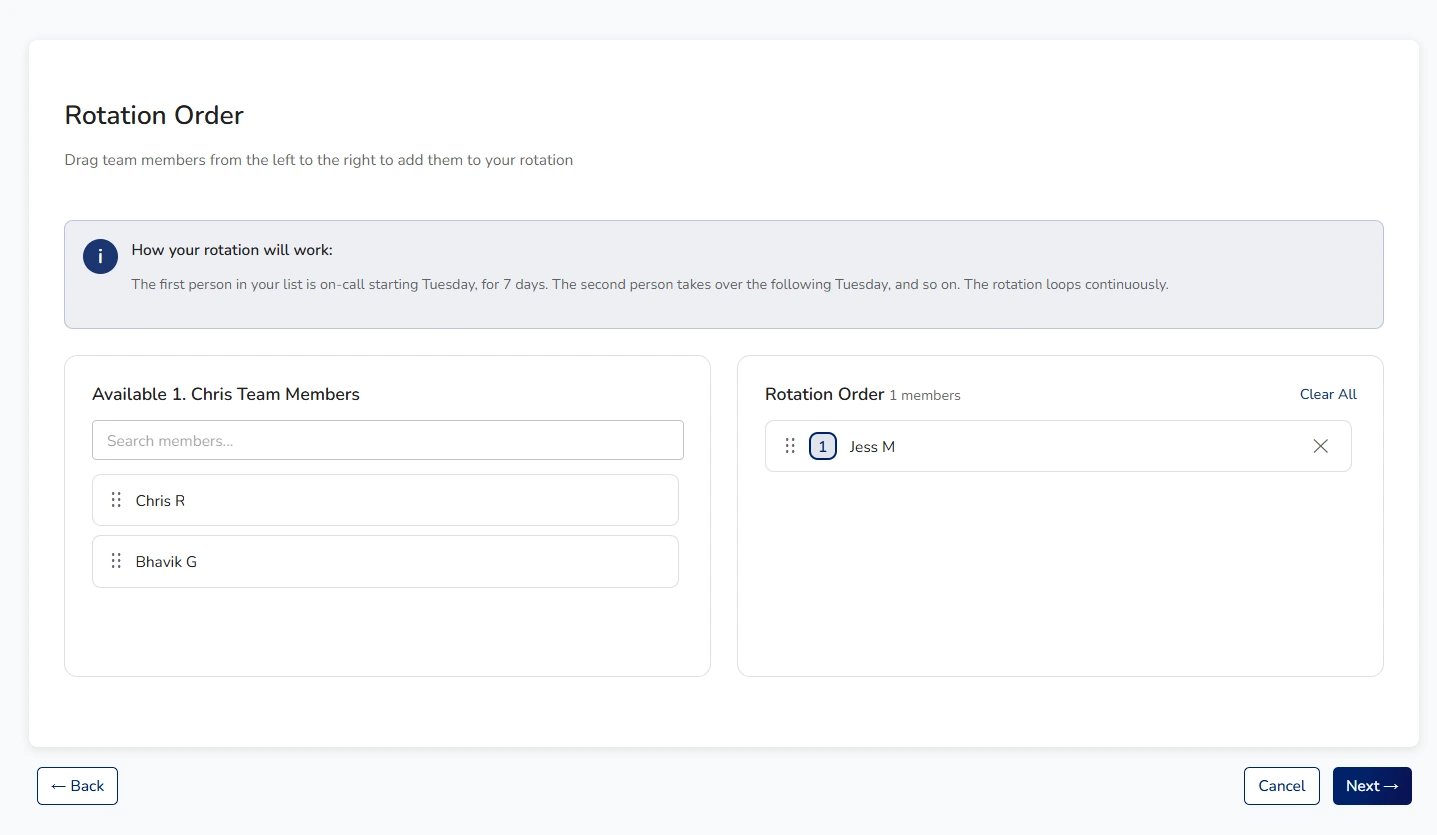
- Select who is on shift and drag the names into rotation order. Each person gets a color by default, and you can change it.
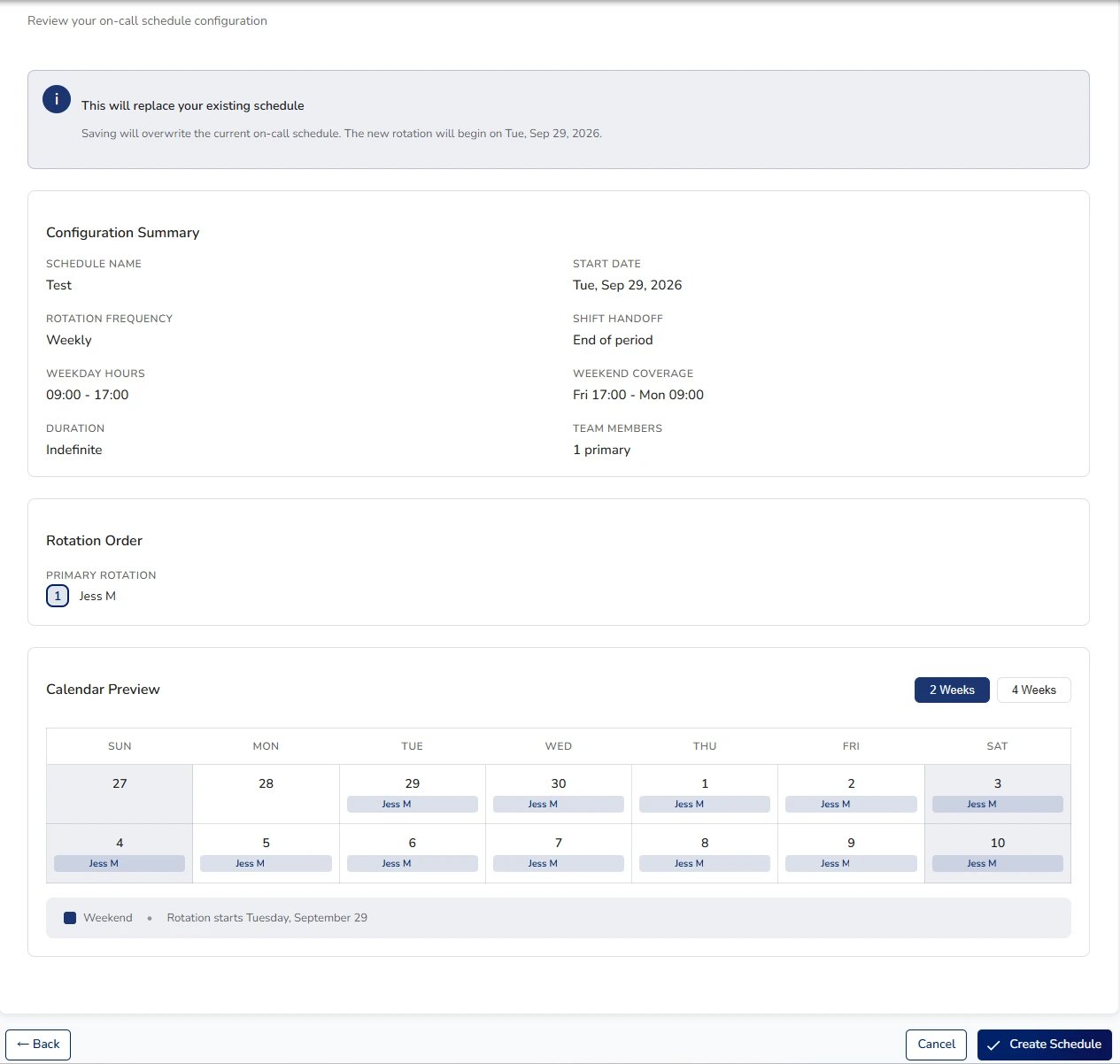
- Review the summary and preview of the coming weeks, then confirm.
How Long Does the Schedule Run?
Schedules with no end date are built about 10 years ahead. You are not locked into the original team, and you can update the list of people at any time.
View a Schedule
Open the on-call calendar to see who is on shift. Click the schedule block to open more details on the shift scheduled.- Admins: selecting a schedule block opens it for editing.
- Technicians: selecting a schedule block opens a read-only summary showing who is on shift and the escalation path.
Edit a Schedule to Add or Remove a Technician
Each notification group has one wizard schedule. Re-running the wizard replaces the existing schedule with the new one.- Select New Schedule and choose the wizard. Your existing schedule opens in edit mode.
- Set the start date to the day the change should take effect, for example the Monday a new technician starts.
- Give the schedule a name.
- Re-enter your settings with the updated list of people and order.
- Confirm.

Scheduling a Single On-Call Individual
The Classic setup is the original way to build on-call schedules. Instead of guiding you through a whole rotation, it lets you create and edit a schedule for one person at a time. It is still available alongside the wizard, so you can build a schedule the wizard doesn’t support yet. To open it, click New Schedule and choose Classic setup in the pop-up.Wizard vs. Classic Setup
When to Use the Classic Setup
- Your weekend coverage has more than one separate window
- You need a single custom schedule for one person, such as extra coverage on one day
- You need a repeat pattern the wizard doesn’t offer yet
- You want to change one person’s schedule without re-running the whole rotation
Create or Edit a Schedule in the Classic Setup
- Select New Schedule and choose Classic setup.
- Choose the person the schedule is for.
- Enter the schedule details: a name, the days and times the person is on call, and whether the schedule repeats, for example every 7 weeks.
- Save the schedule.
- Repeat for each person who needs coverage.
Naming Classic Schedules
Give each Classic schedule a descriptive name such as “Weekdays on shift”, “Weekends on shift”, or “Overnights”. The name helps you tell one person’s schedules apart when you review the calendar.Repeating Classic Schedules and Rule Range
A Classic schedule can repeat, for example every 7 weeks. The Rule Range controls how far ahead repeating shifts are generated. If the Rule Range is shorter than the repeat cycle, future shifts don’t appear on the calendar. Set the Rule Range to cover at least one full repeat cycle.Using the Wizard and Classic Setup Together
Many partners build the main rotation in the wizard and add their exceptions in the Classic setup. For example, use the wizard for the weekday rotation and Classic schedules for a split weekend. Wizard and Classic schedules are set up and edited separately, so review the calendar after changing either one.Covering a Vacation or Absence
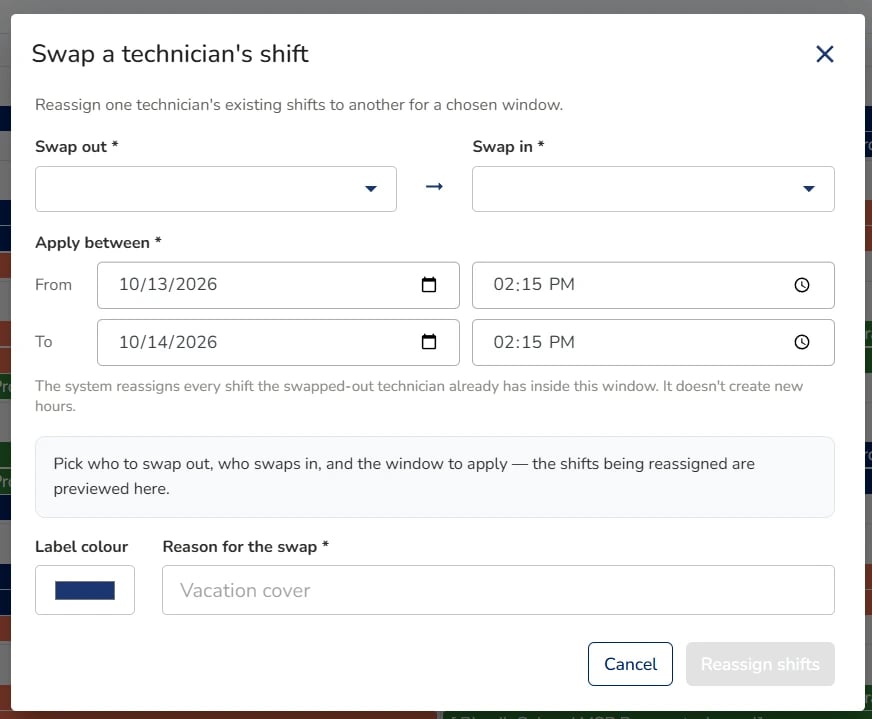
An admin can swap one technician for another across a date range.
Schedules and Alerts
The schedule decides who is on call, but it does not notify anyone by itself. To alert the on-call person when a ticket comes in, create a workflow that raises an incident for your notification group.Pitfalls to Watch Out For
Weekend Hours That Aren’t One Continuous Block
- The wizard supports one continuous weekend block, such as Friday 5:00 PM through Monday 8:00 AM. If your weekend has separate windows, for example Friday evening, a Saturday afternoon window, and all day Sunday, use the wizard to build your weekday rotation and add weekend coverage for each person with the Classic setup (see “What Is the Classic Setup?”).
Changing a Schedule Without Setting a New Start Date
- Editing through the wizard replaces the existing schedule. Set the start date to when the change should take effect, for example the Monday a new technician starts, rather than reusing the original start date.
Wrong Time Zone
- Shift times are calculated in the time zone the admin choose in the wizard. If you used the Classic Setup, the time zone will be what is set in Settings \> Account Settings \> Settings page.
- If shifts appear at the wrong hour, reopen the schedule, or the settings page, and confirm the time zone matches where your team works.
Changing the Wizard Schedule and Classic Schedule Separately
- Wizard schedules and Classic setup schedules are set up and edited separately. If you use both, review the calendar after changing either one to confirm the coverage still looks right.
Technicians Can’t Edit
- Technicians see a read-only view. To change a schedule, use an admin account.
A Recurring Classic Schedule Shows Blank Days
- If a Classic setup schedule that repeats every few weeks stops showing future shifts, its Rule Range is probably too short (see “Repeating Classic Schedules and Rule Range”). Set the Rule Range to cover the full repeat cycle. If you’re not sure what value to use, contact support and we will confirm it.