

Introduction
Integrating Hudu with MSP Process enhances your password rotation module. When you rotate a password for a highly privileged account within MSP Process, this integration allows you to automatically push the updated password directly to your Hudu documentation management solution. Follow the steps below to set up the integration.Step 1: Generate an API Key in Hudu
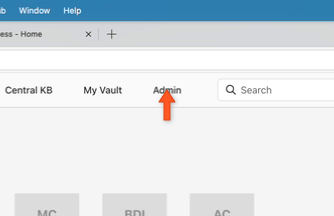
- Log into your Hudu instance and click on the Admin tab in the top navigation bar.
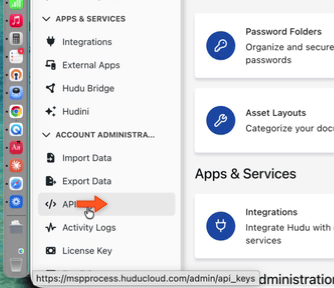
- In the left-hand menu, scroll down to the Account Administration section and click on API Keys.
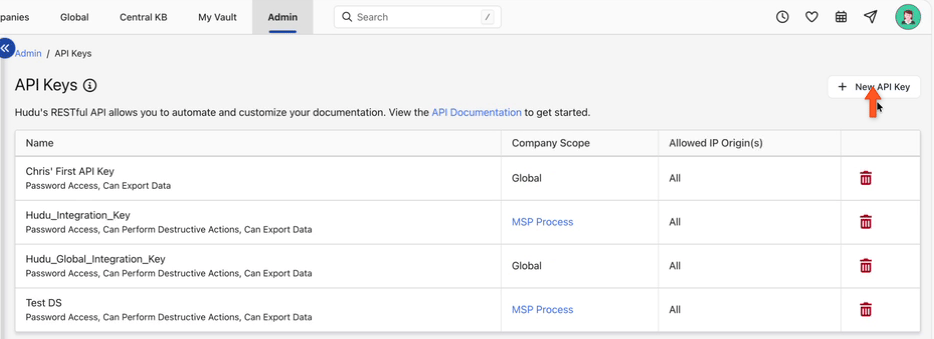
- Click the + New API Key button.
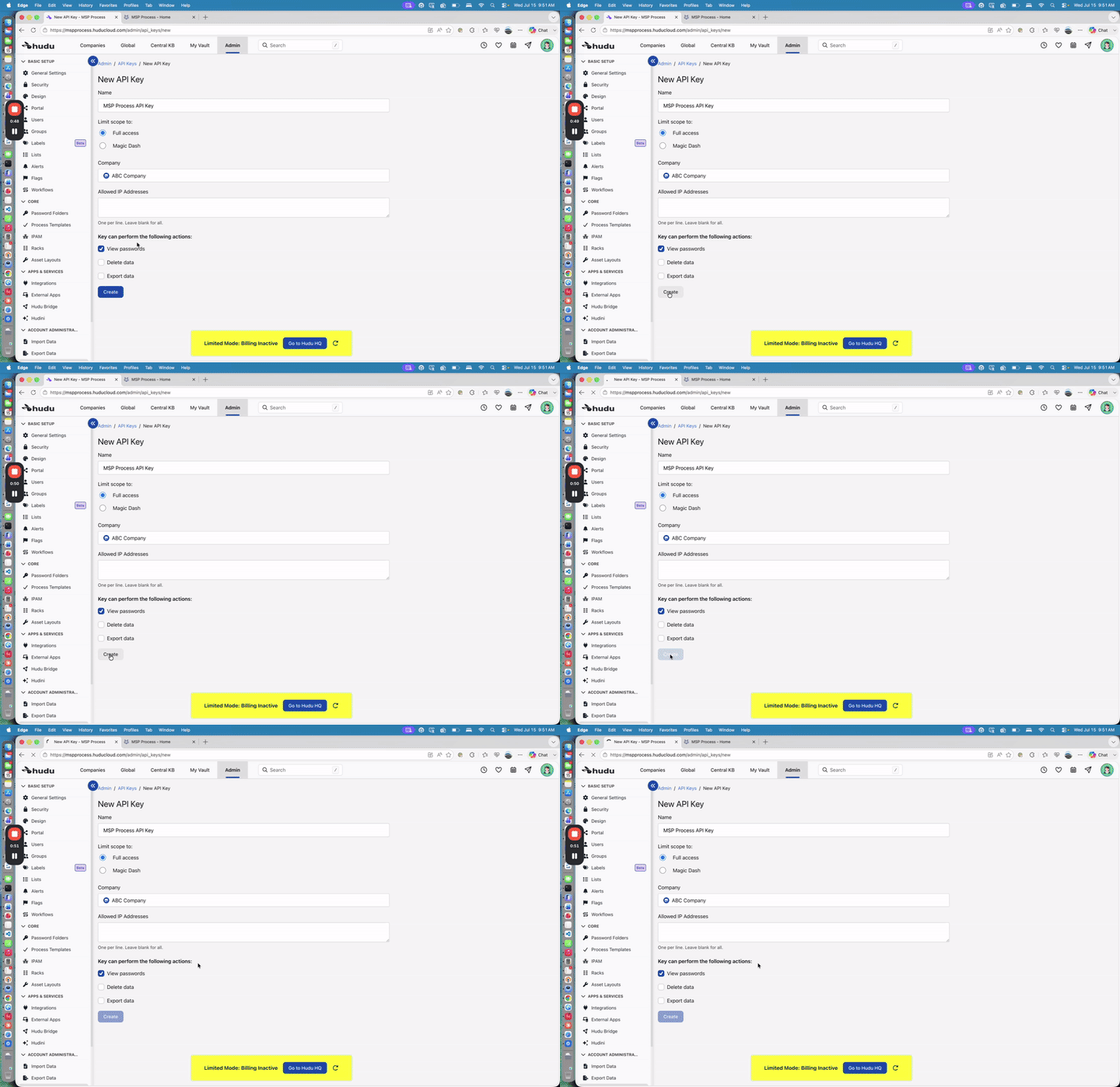
- Provide a name for the key (e.g.,
MSP Process API Key). Set the scope to Full access, select the appropriate companies, and ensure you check the View passwords permission. Click Create.
- Click the copy icon to copy the generated API key to your clipboard. Keep this secure, as you will need it for the next step.
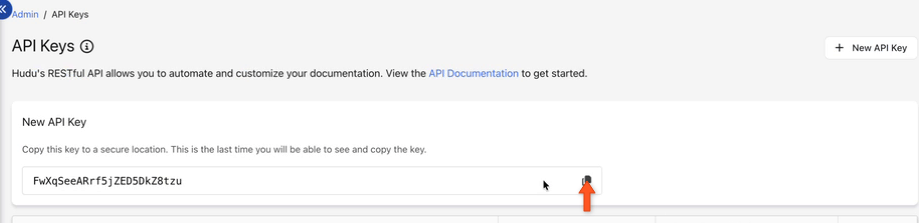
Step 2: Configure the Integration in MSP Process
- Log into MSP Process and navigate to Settings > Integrations > Security Integrations.
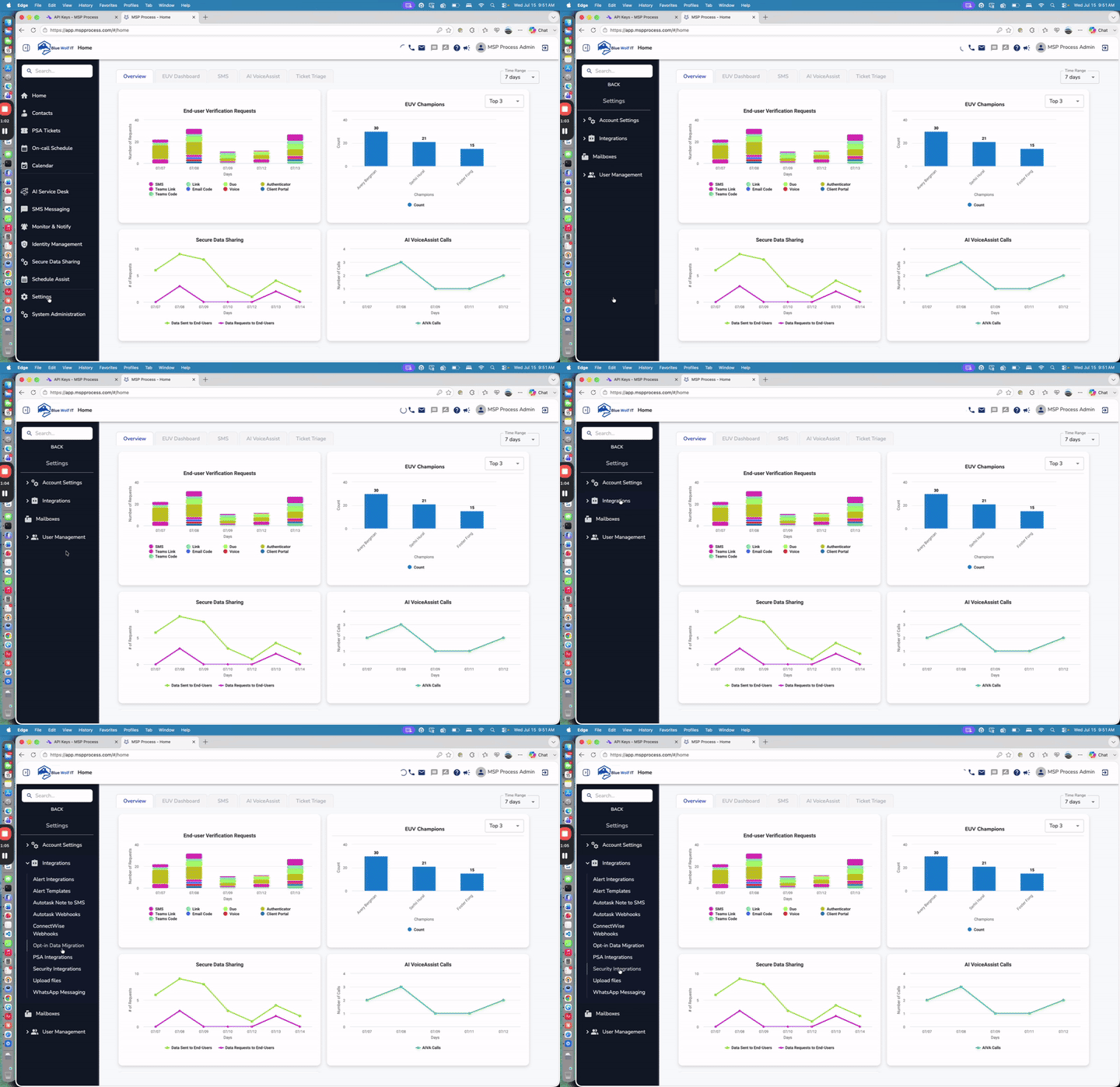
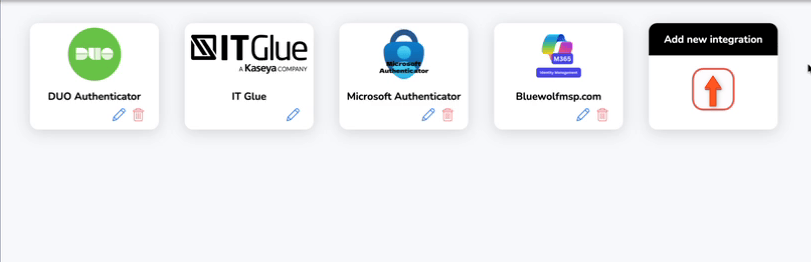
- Click the Add new integration button.
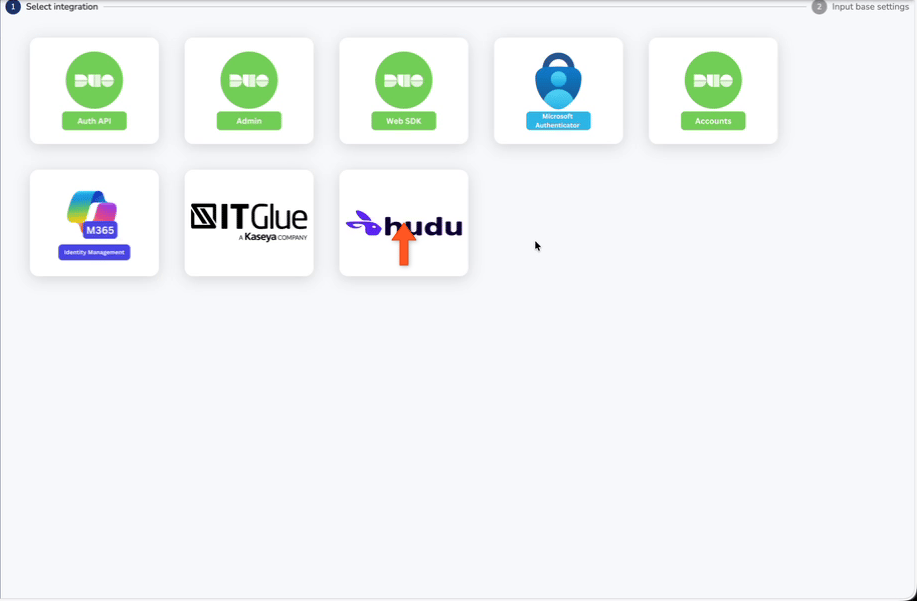
- Select the Hudu integration card.
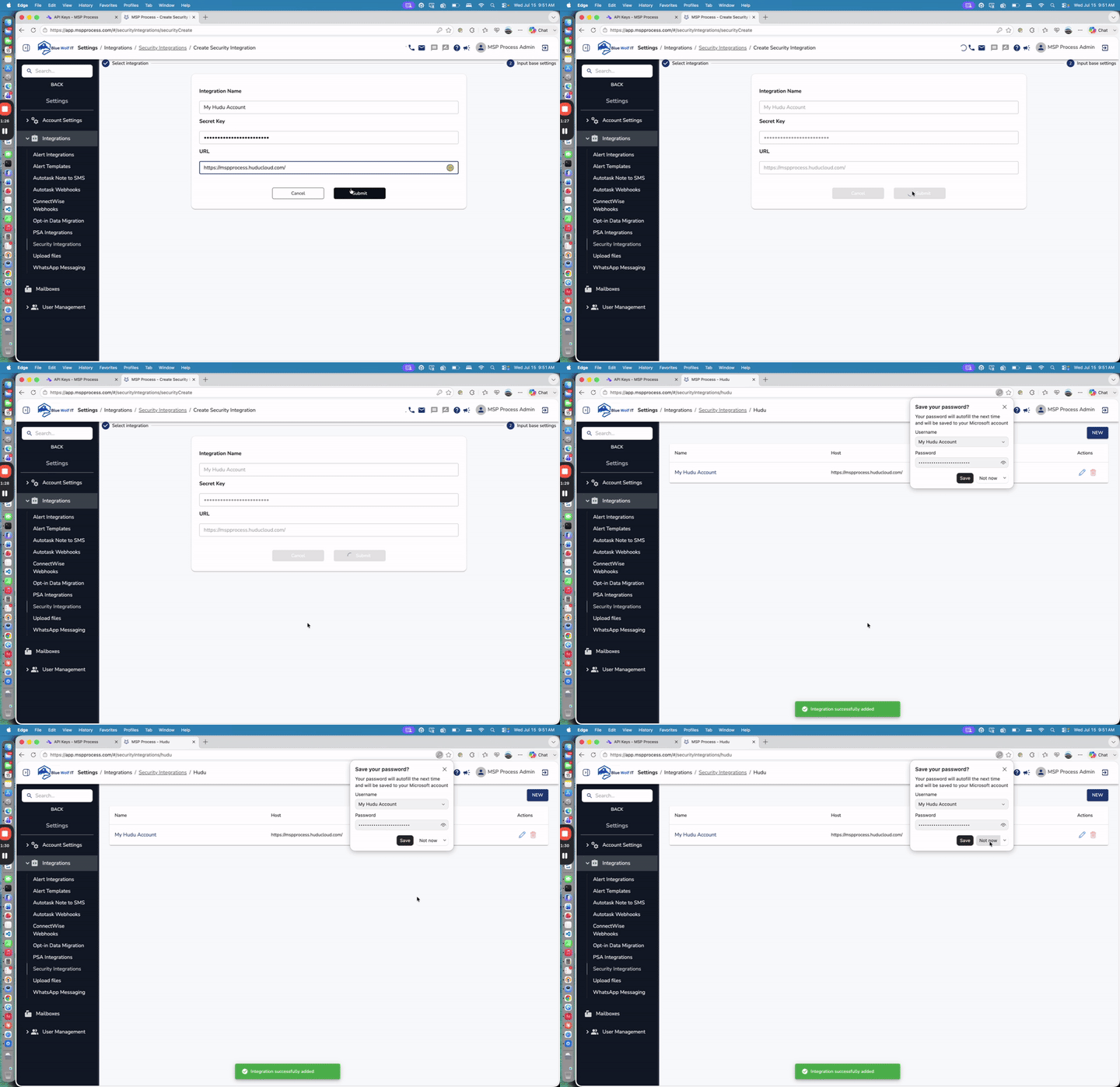
- Enter an Integration Name (e.g.,
My Hudu Account), paste the Secret Key you copied from Hudu, and enter the URL of your Hudu instance (e.g.,https://mspprocess.huducloud.com). Click Submit.
Step 3: Managing and Syncing Companies
Once the integration is set up, you can map companies set up for password rotation in MSP Process with the companies pulled from Hudu.- On the Security Integrations page, click the edit (pencil) icon next to your newly created Hudu integration.

- Click the Sync button to pull the list of companies from Hudu. If the company names in MSP Process match the names in Hudu exactly, they will map automatically. You can also manually add or delete mappings as needed.
Deleting the Integration
If you ever need to remove the Hudu integration, simply navigate back to the Security Integrations page and click the trash can icon next to your Hudu account.